Management Web
Management component is responsible for managing licensees, settings and the database.
The default Management web service address is http://<server_ip>:40004 although the port may change during server configuration therefore change the url accordingly.
Login
After navigating to Management web component url, you will see a login screen:
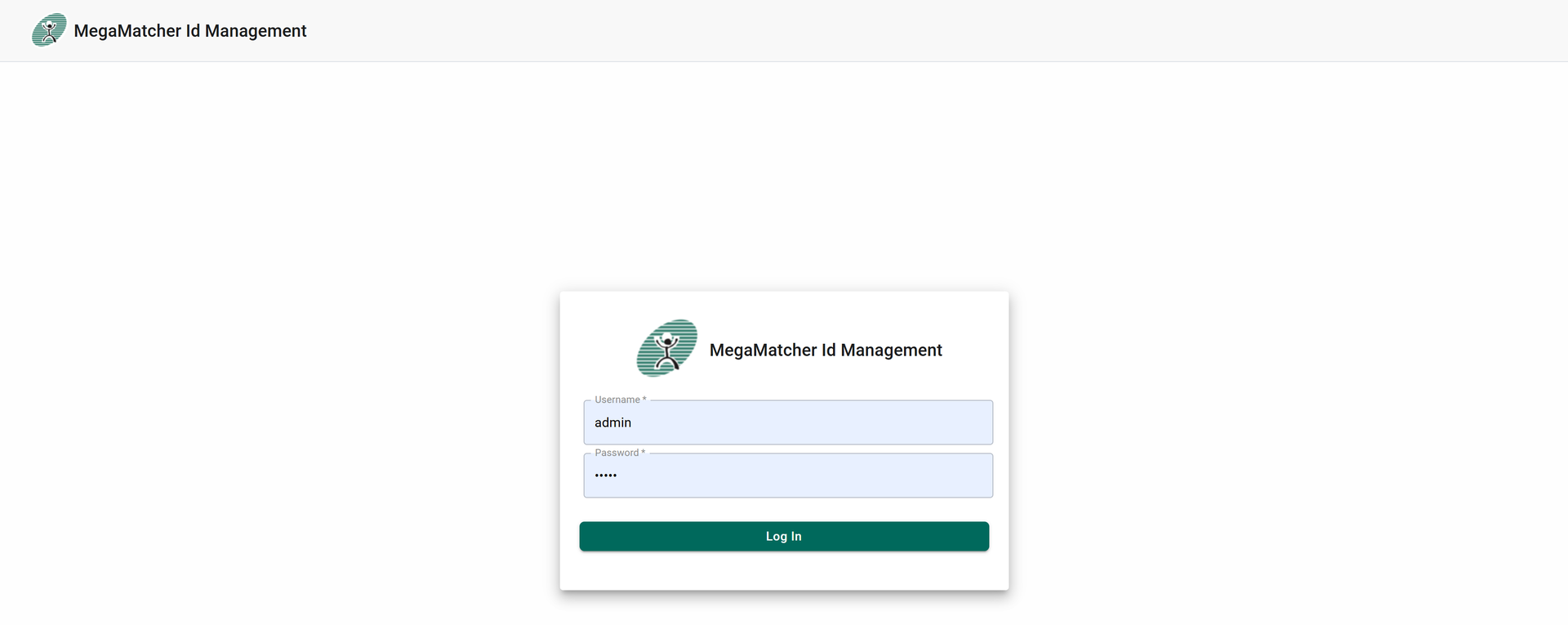
The default login credentials for Management web component are admin as username, and admin as password.
Subjects
Subjects is the first and default view after successfully logging in. Subject view can be used to see what is enrolled in the database, review enrolled subjects details.
The full Subjects view looks like this:
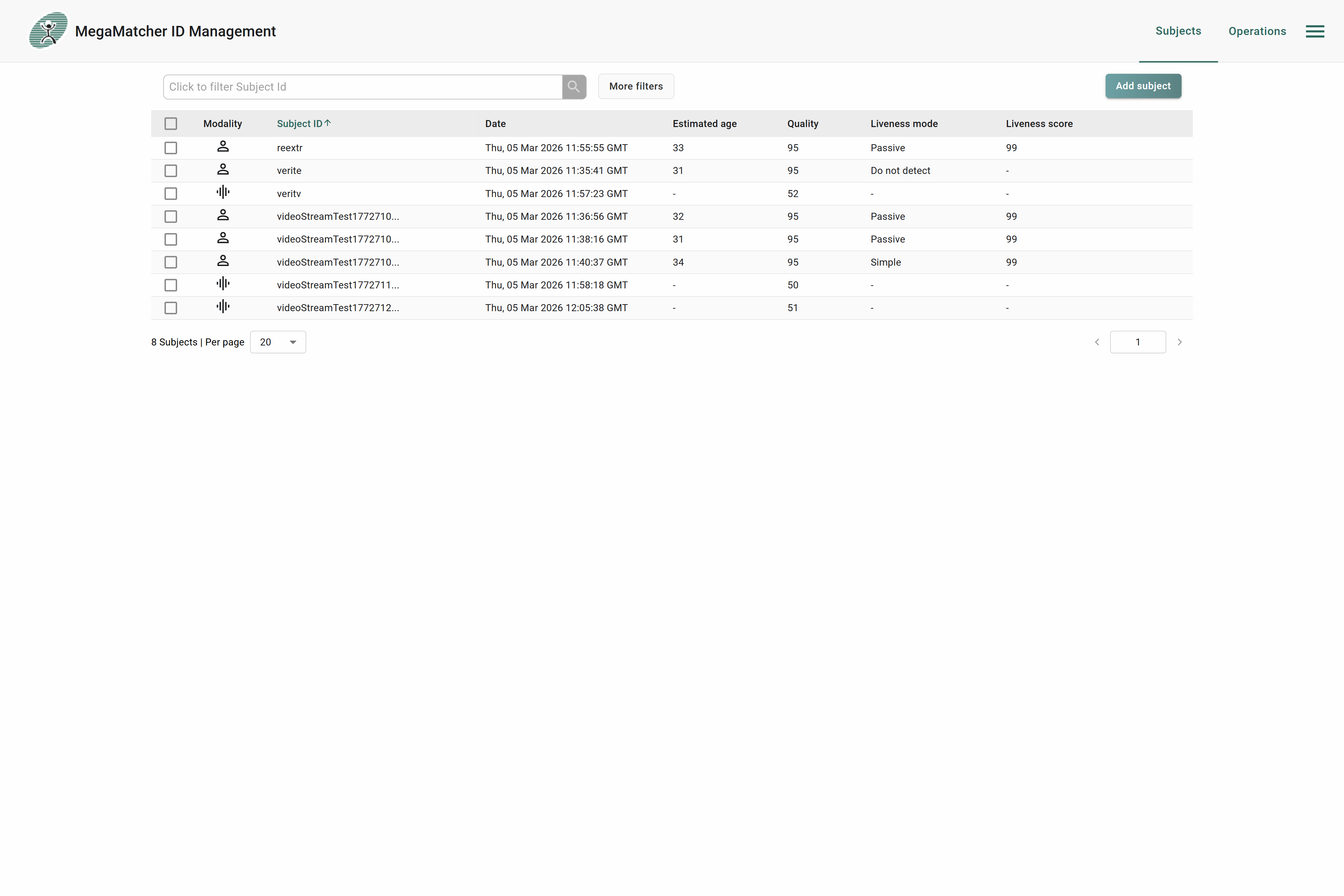
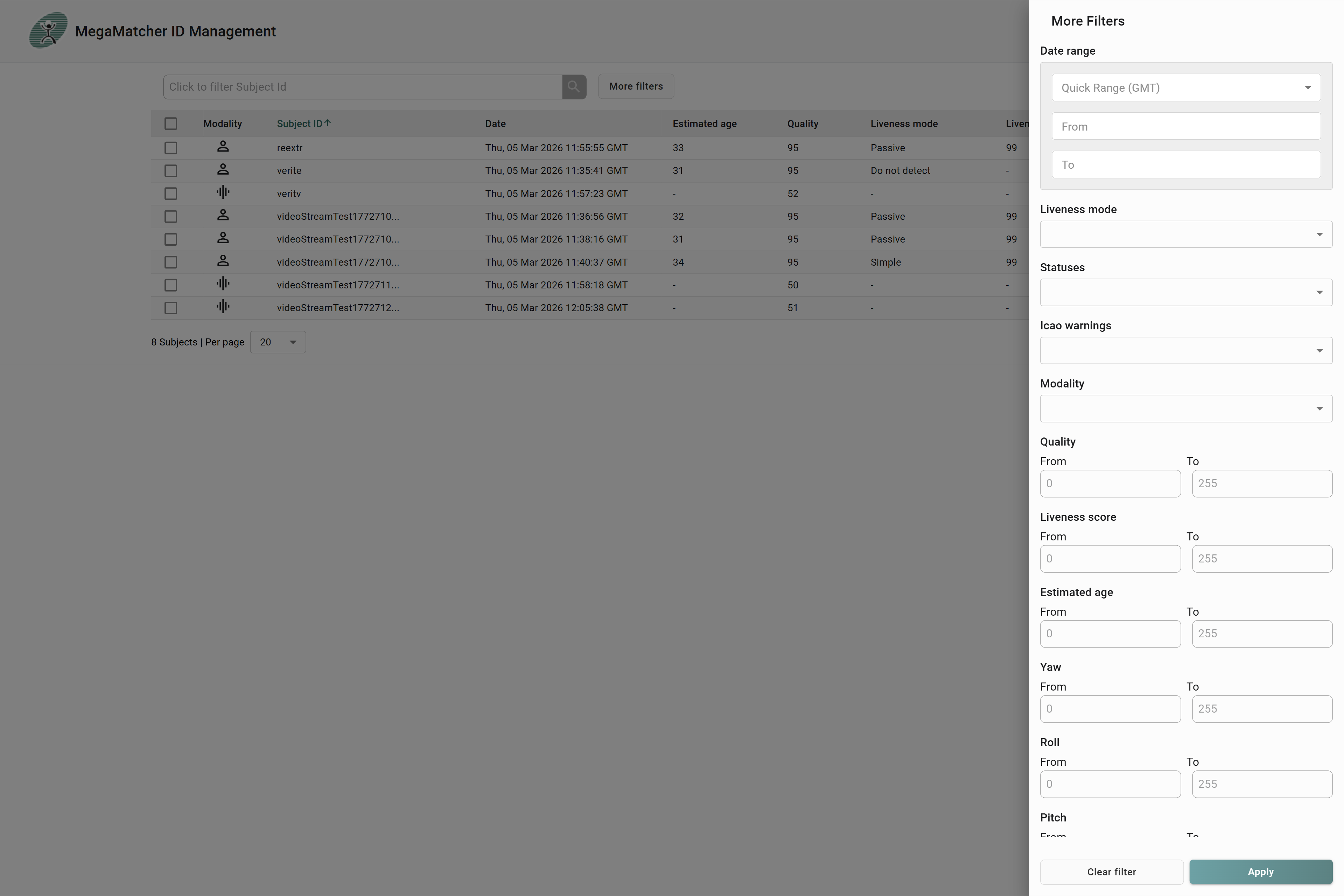
Subject filtering system allows to easily find subject by subjects ID if more filtering is needed, it can be found by clicking more filter:

More filters allows to filter subjects by:
- Enrollment date
- Liveness mode
- Status
- ICAO warnings
- Modality
- Quality
- Liveness score
- Estimated age
- Yaw
- Roll
- Pitch
It is possible to view each subject individually by clicking on the row. Subject information windows will appear. Depending on the modality it will look slightly different.
Subjects individual view allows:
- Viewing subject information including extracted image quality, face rectangle and audio
- Downloading subject info including template, original image, token image, audio by pressing triangle down next to download
- Deleting subject record
Face modality subject view:

Voice modality subject view:

Finally, the Subjects view can be used for enrolling new subjects from different data formats:
- Image (This counts as a single PRT transaction)
- NTemplate (This counts as a single PRT transaction)
- MMIDTemplate (As template was extracted on MMID SDK or Server previously, it is not charged additionally)
And there are a few settings while creating the subject:
- Modality selection
- Detect liveness
- Check ICAO
After pressing Create subject button, subject creation view will appear:
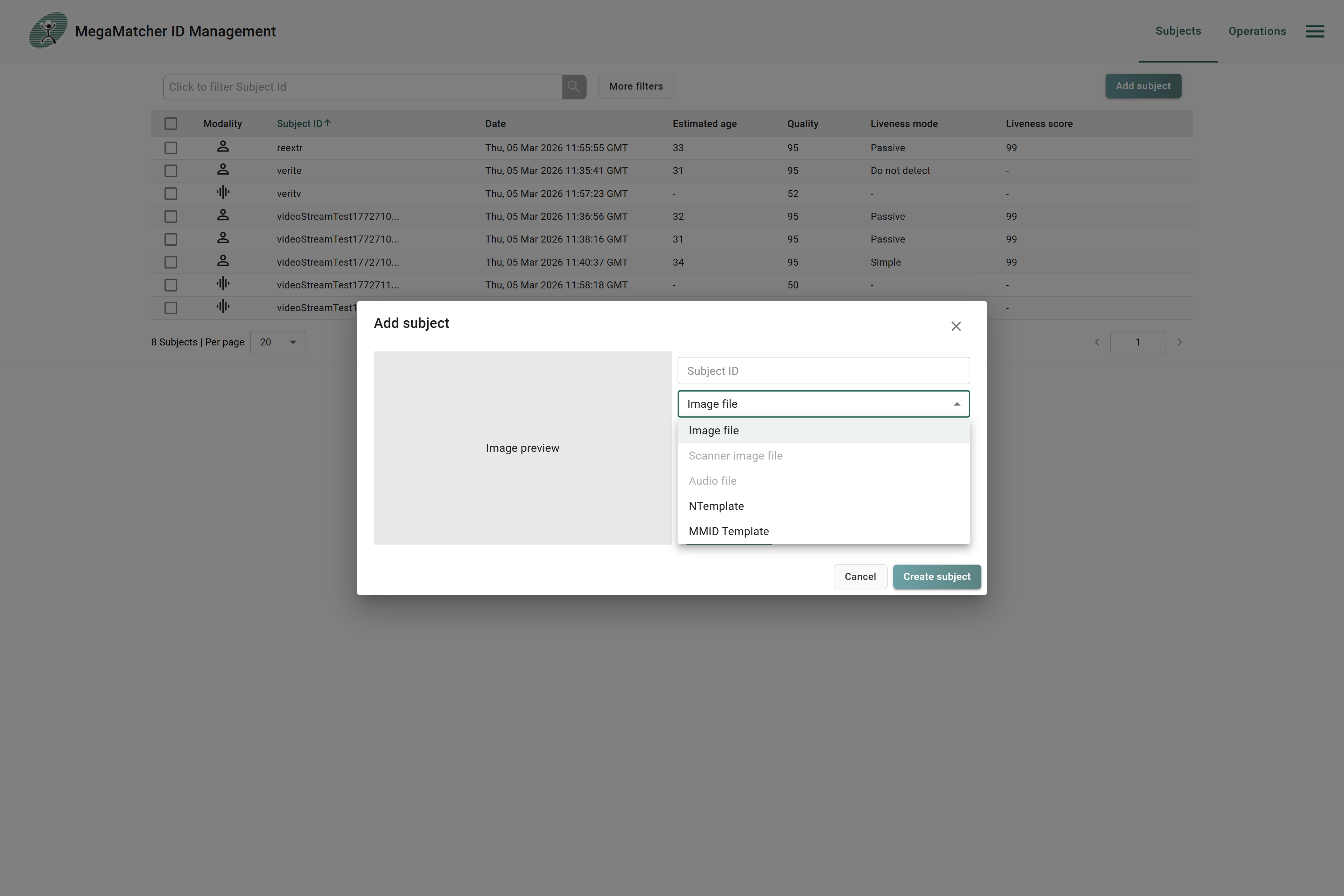
If Image and a template is passed at the same time, only template will be used as face reference to the database. Image will only be used for preview, and later added to the database for display purposes.
Operations
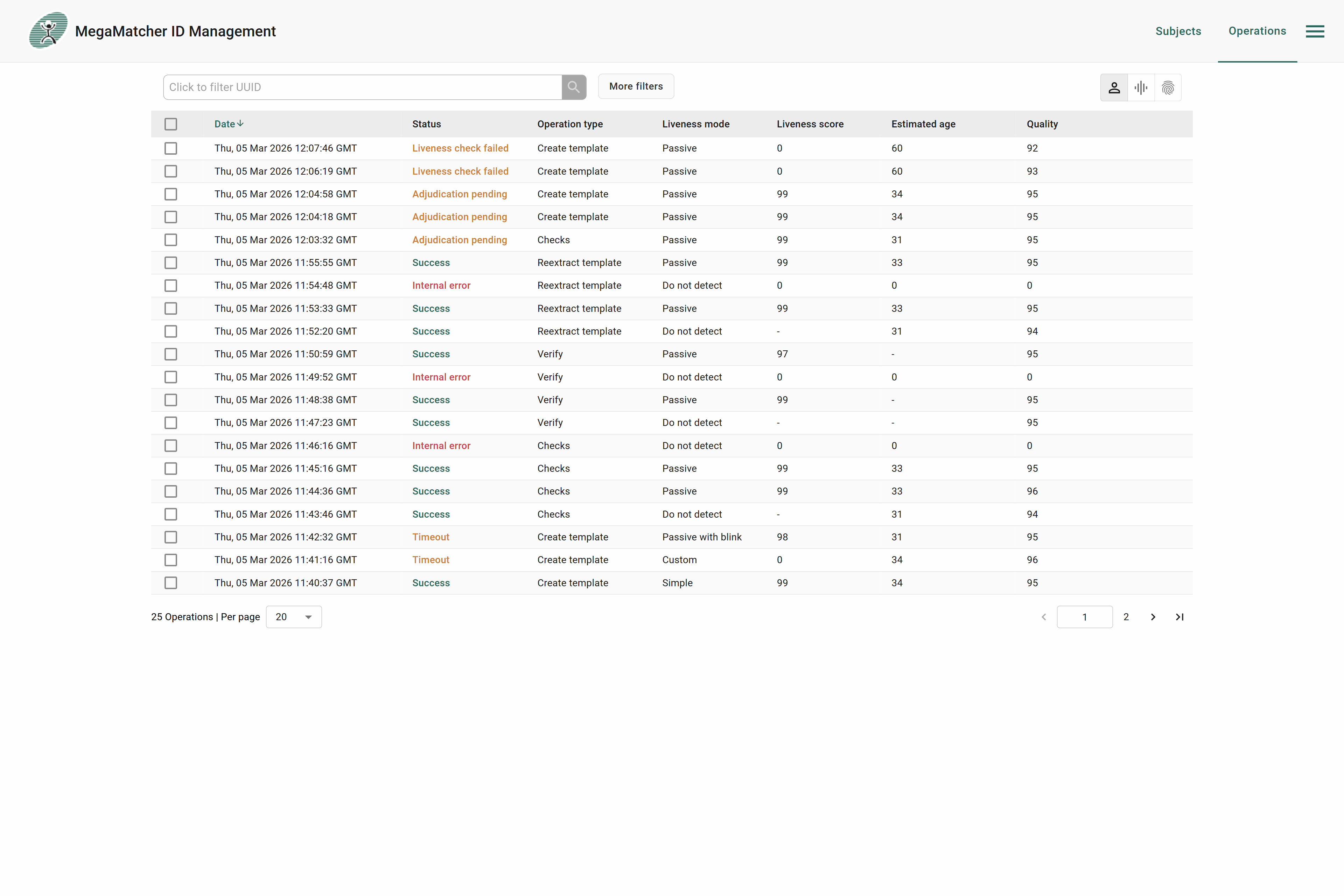
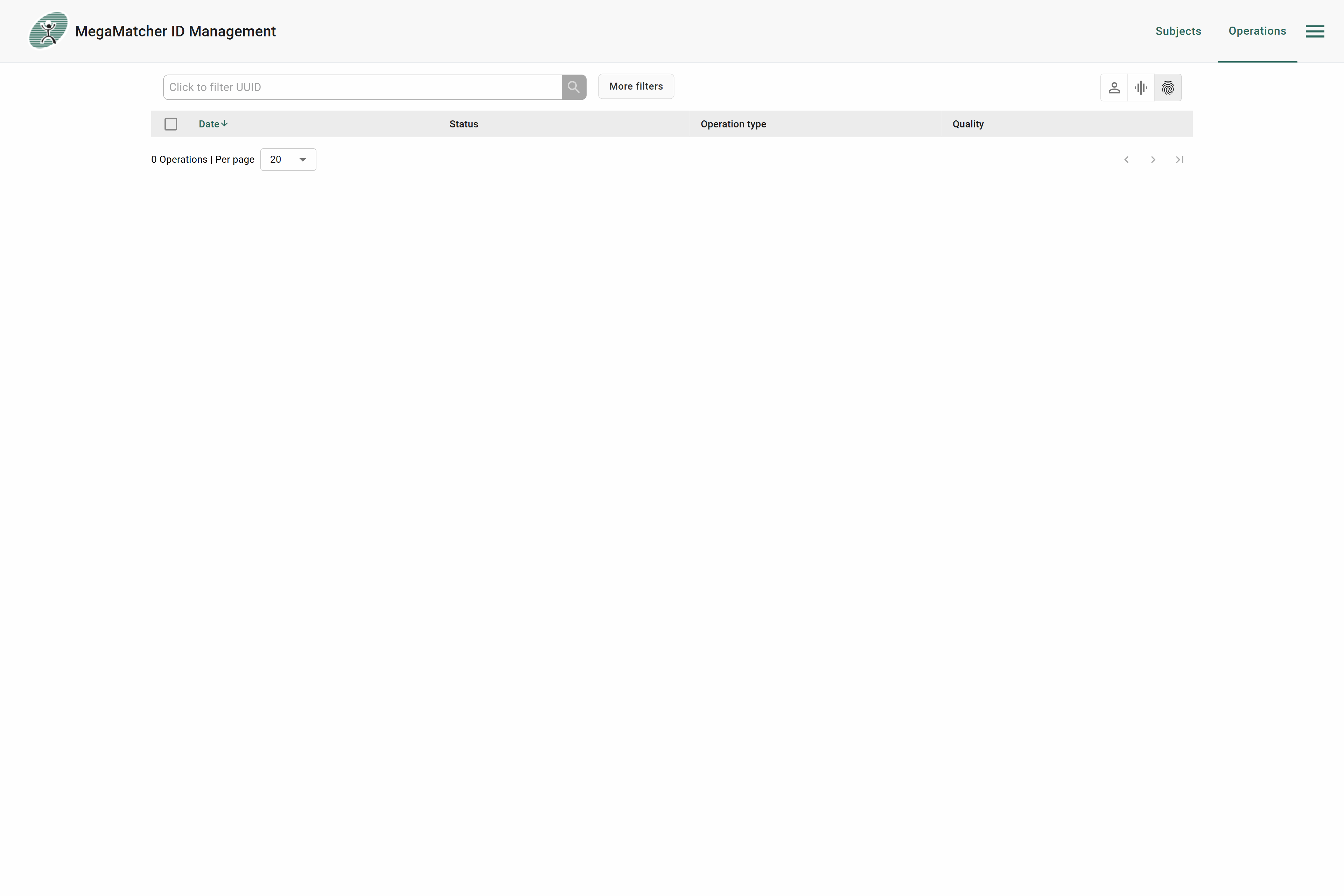
This window shows all operations that were made on MegaMatcher ID server, including subject operations.

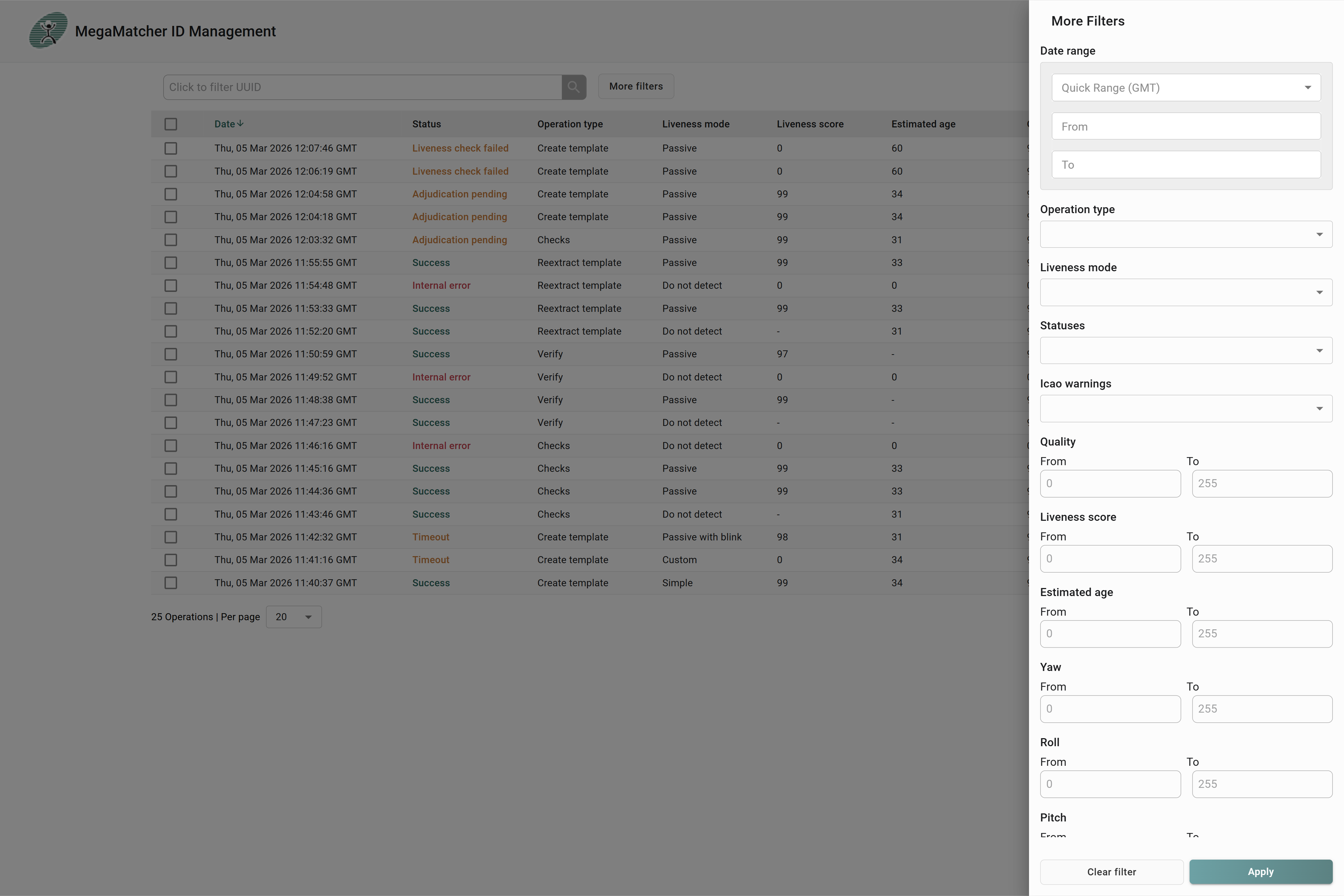
Similar to subjects you can easily filter by operation UUID, if more filtering is needed, it can be found by clicking more filter:

More filters allows to filter operations by:
- Operation date
- Operation type
- Liveness mode
- Status
- ICAO warnings
- Modality
- Quality
- Liveness score
- Estimated age
- Yaw
- Roll
- Pitch
It is possible to view each operation individually by clicking on the row. Operation information windows will appear, depending on modality will look slightly different and differently then subject some information can be missing depending on the status of operation.
Operations individual view allows:
- Viewing subject information including extracted image quality, face rectangle and audio
- Downloading subject info including template, original image, token image, audio by pressing triangle down next to download
- Deleting subject record, note: if operation is linked with a subject, you cannot delete the operation, you need to delete the subject to which it is linked
- If operation has a subject linked to it, you can go to that subject by clicking on
Go to subject
Face modality operation view:
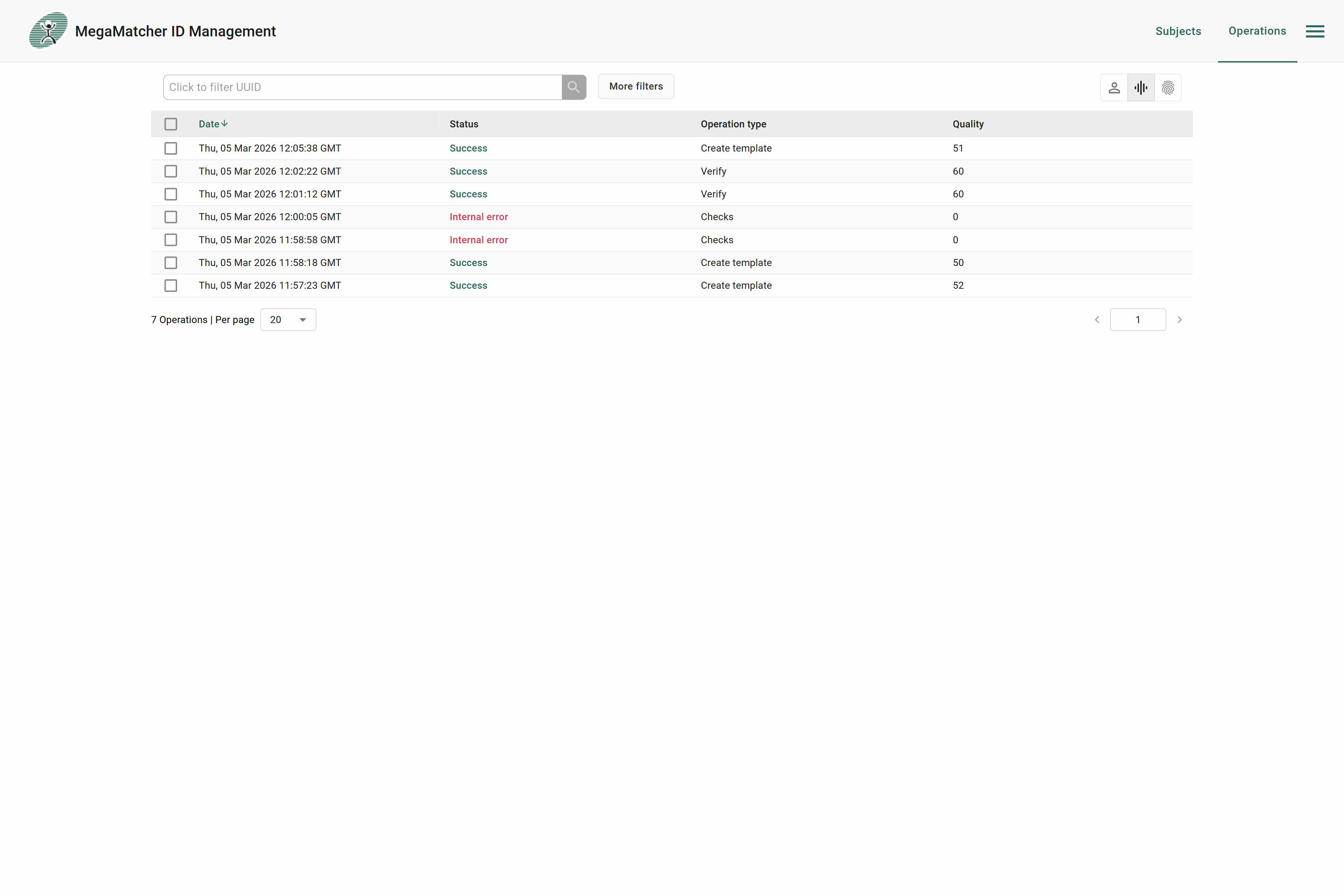
Voice modality operation view:
Finger modality operation view:
Statistics
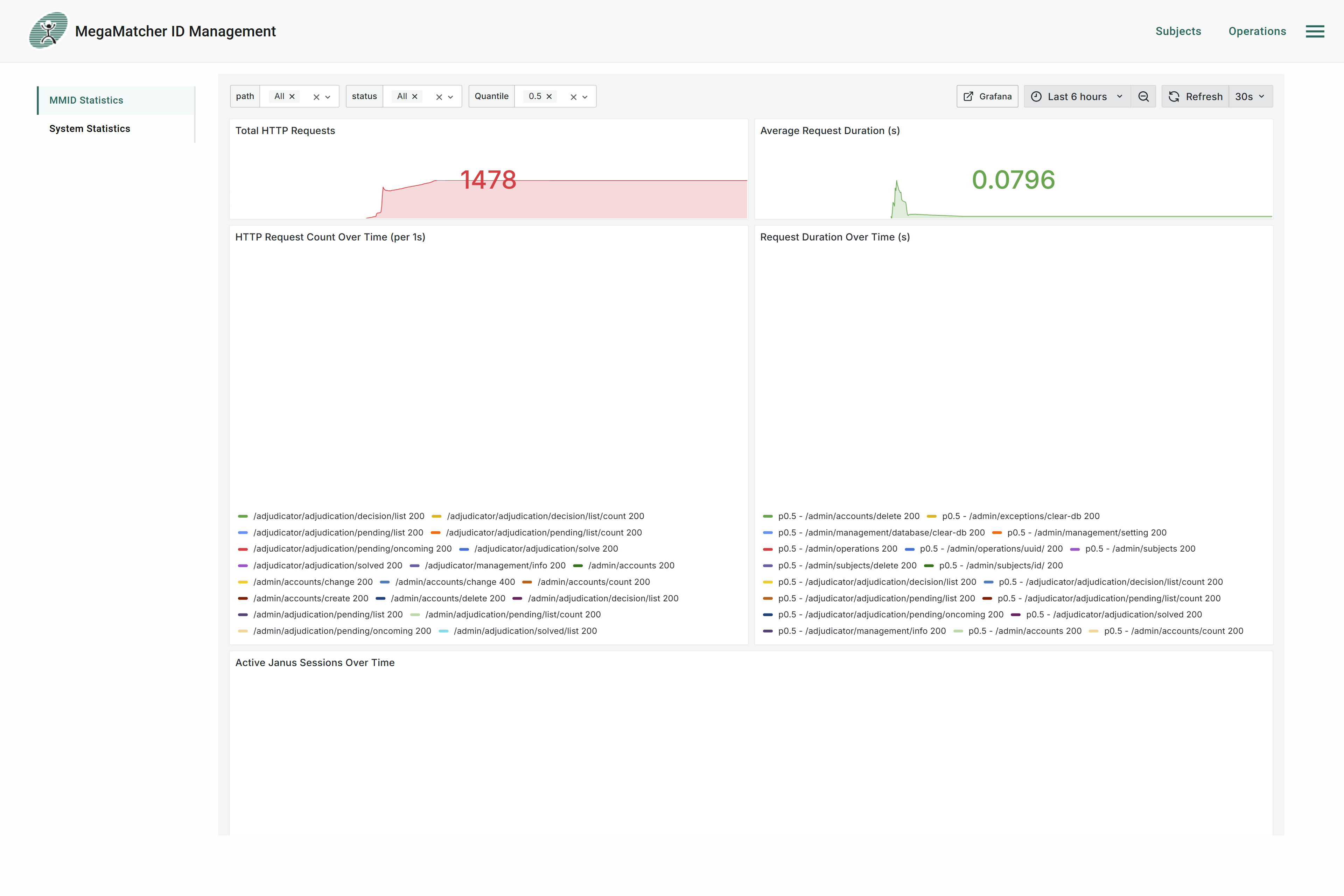
You can view various system and MMID-specific statistics. To open the full Grafana dashboard, press the Grafana button in the top right corner.
MMID statistics show API-level metrics including request counts, request duration, and counts over time:
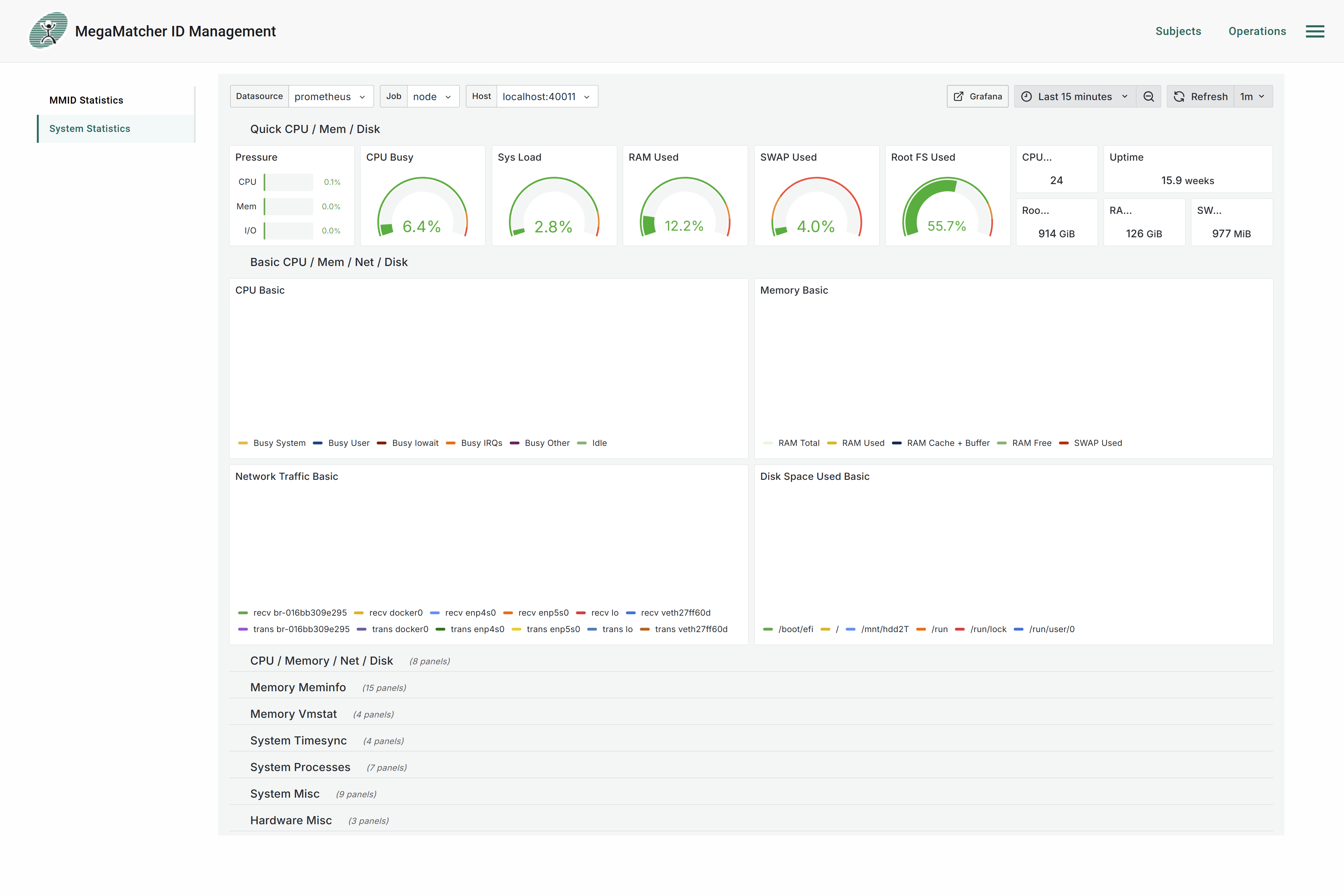
System statistics show the health of the server the service is running on, including CPU usage, RAM usage, and other OS-level metrics:
Adjudication
Adjudication allows for manual oversight of ambiguous operations.
Note: Adjudicators see only their own cases — pending cases assigned to them and cases solved by them. Admins see all pending cases across all adjudicators and all solved cases regardless of who resolved them.
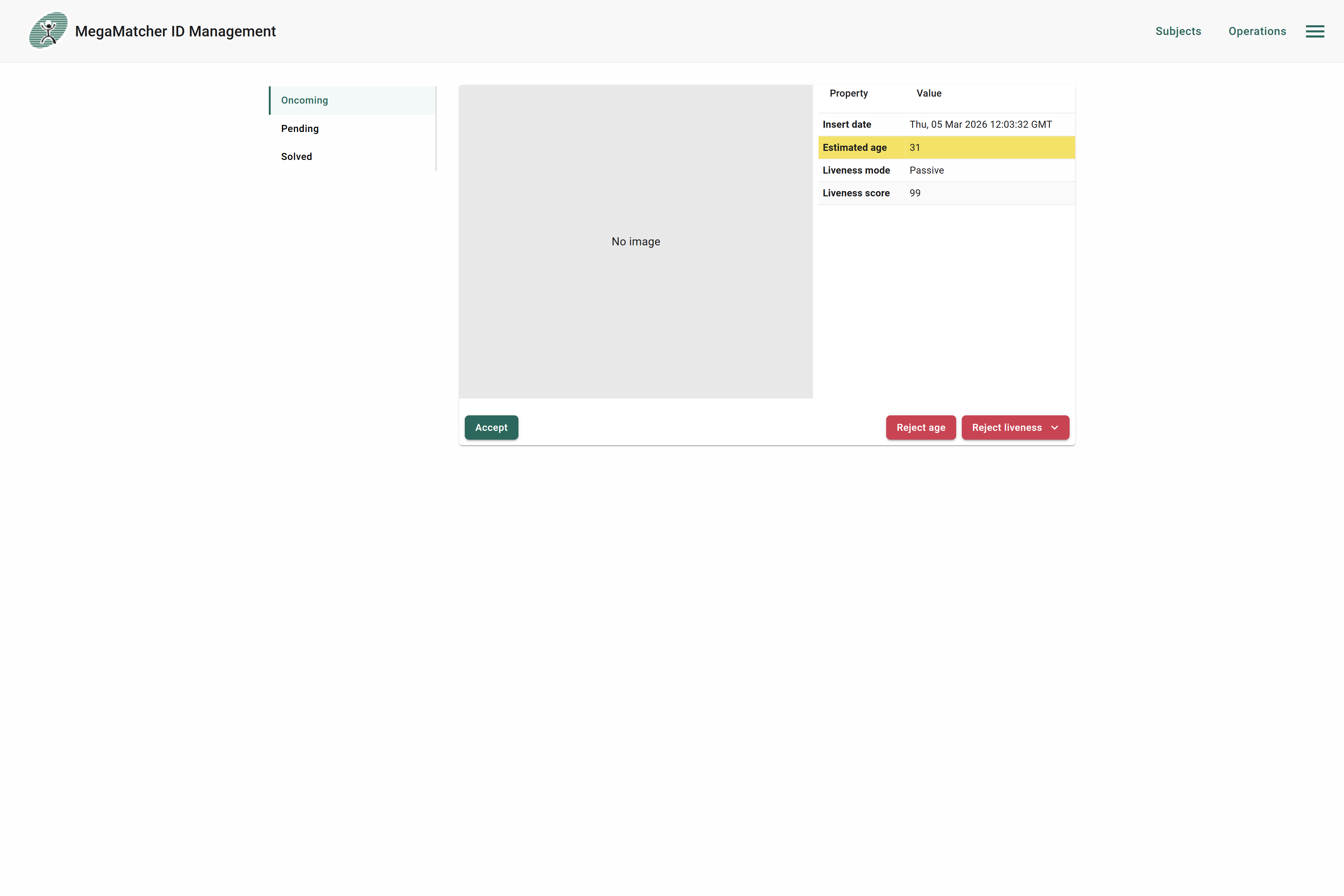
Oncoming shows adjudication cases one by one, starting with the most recent:
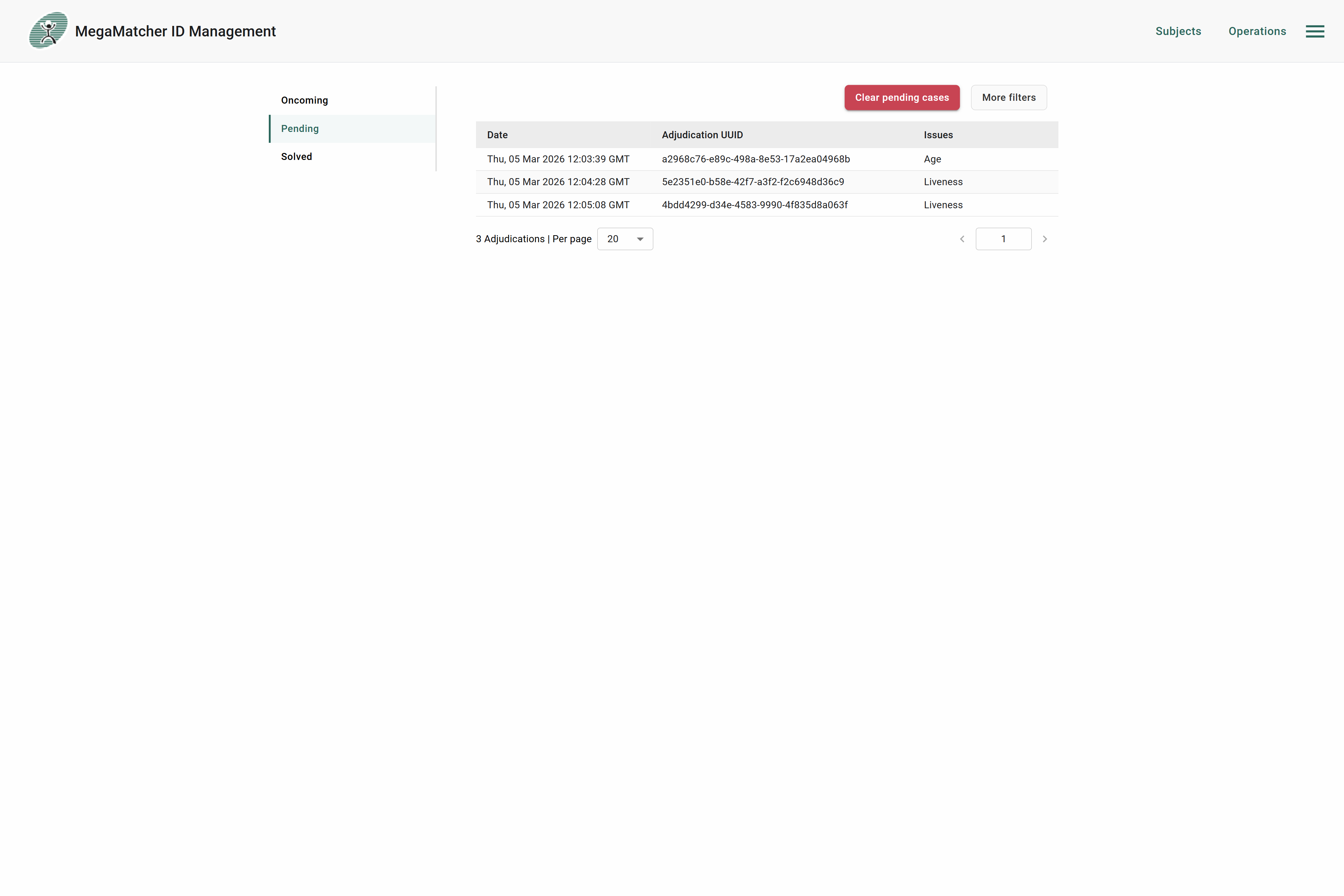
Pending shows all cases that are currently awaiting a decision:
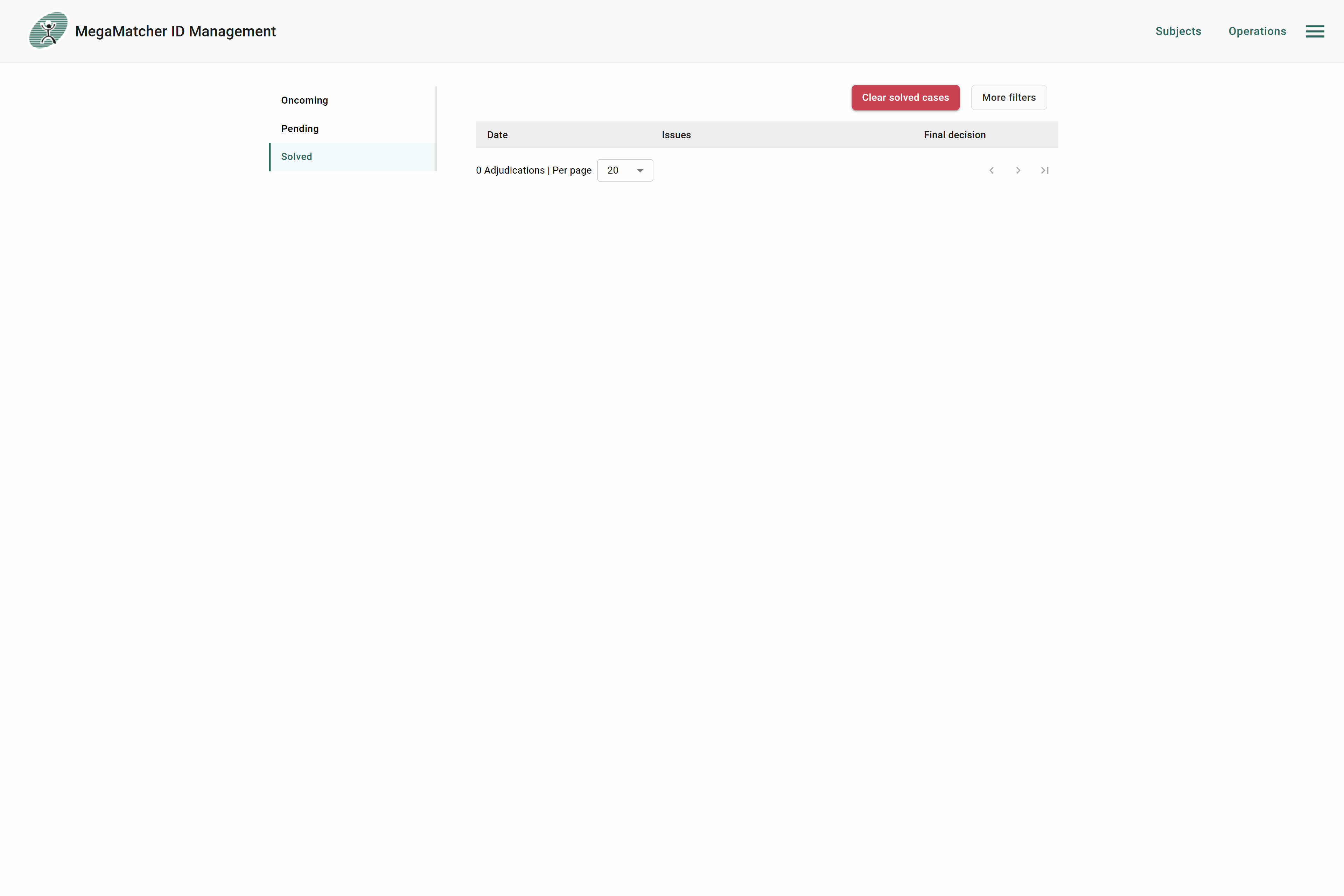
Solved shows all cases that have been resolved:
Exceptions
Exceptions are useful for debugging and finding problems with MegaMatcher ID server.
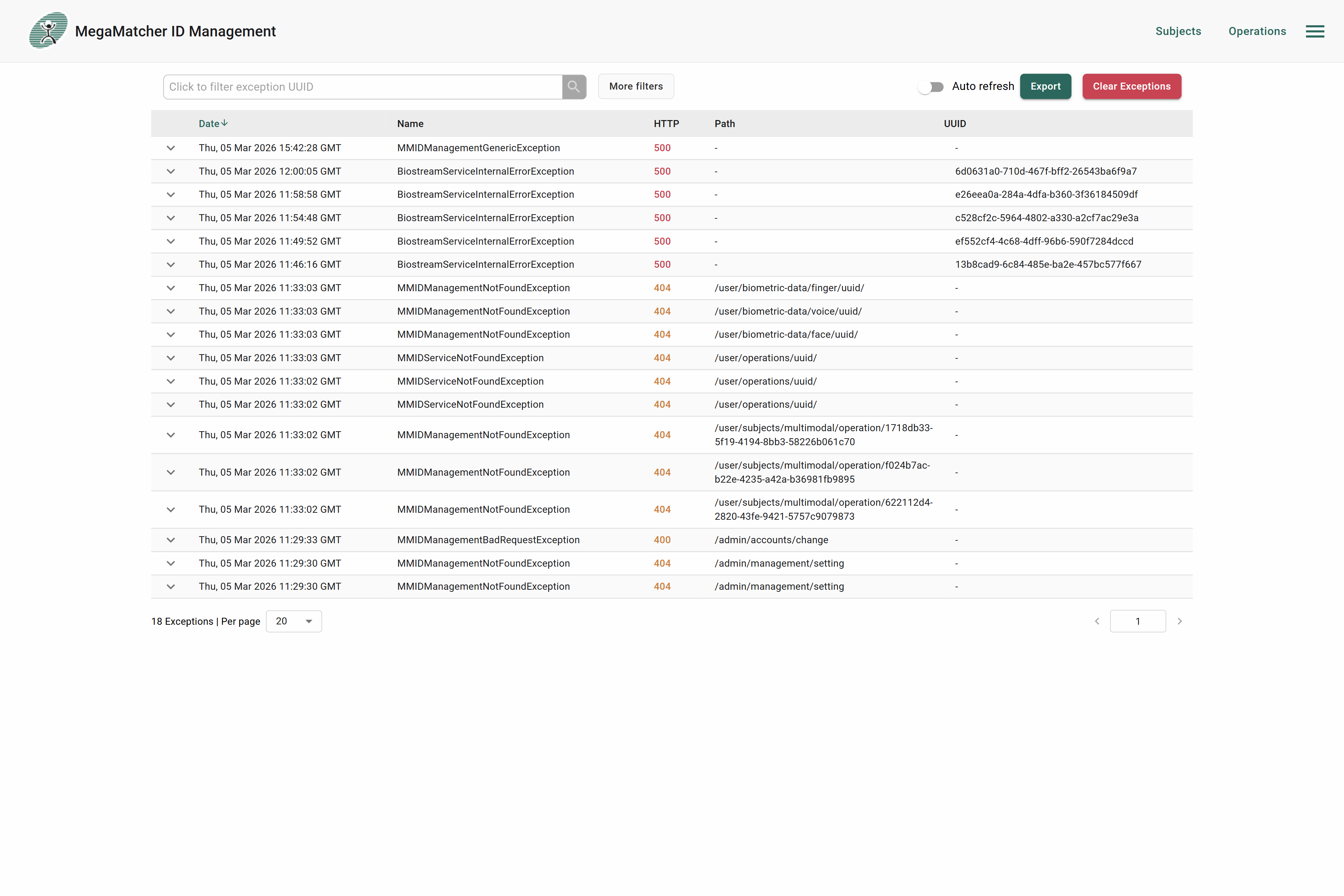
You can easily filter by operation UUID. If more filtering is needed, it can be found by clicking More filters:
Note that due to the nature of exceptions, not all exceptions can be tracked with UUID, but those that have UUID can be tracked to the operation that caused the exception.

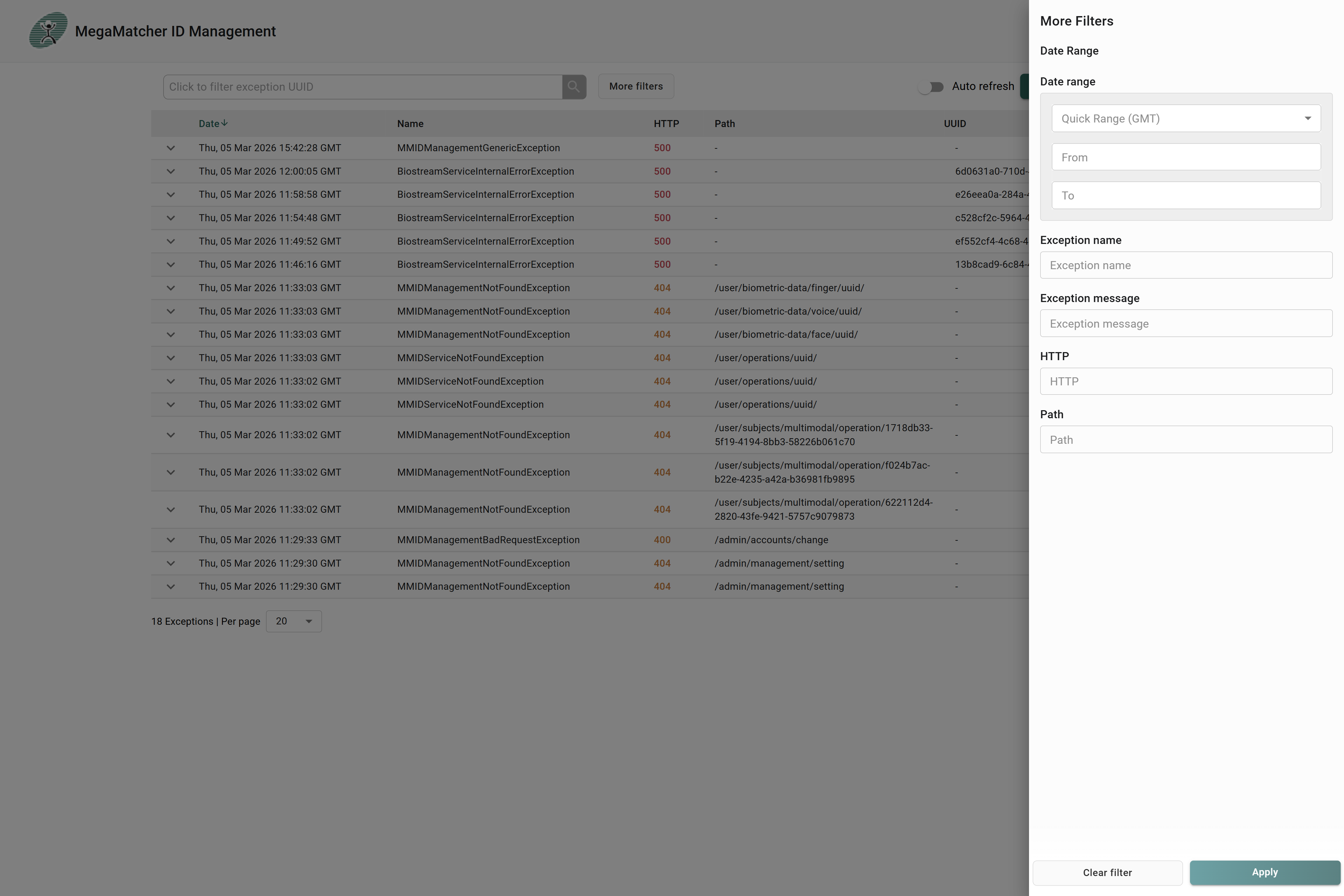
More filters allows to filter exceptions by:
- Enrollment date
- Exception name
- Exception message
- Http code
- Path
Additionally by pressing on the exception, the exception info will expand to show extra information and what could have caused it.
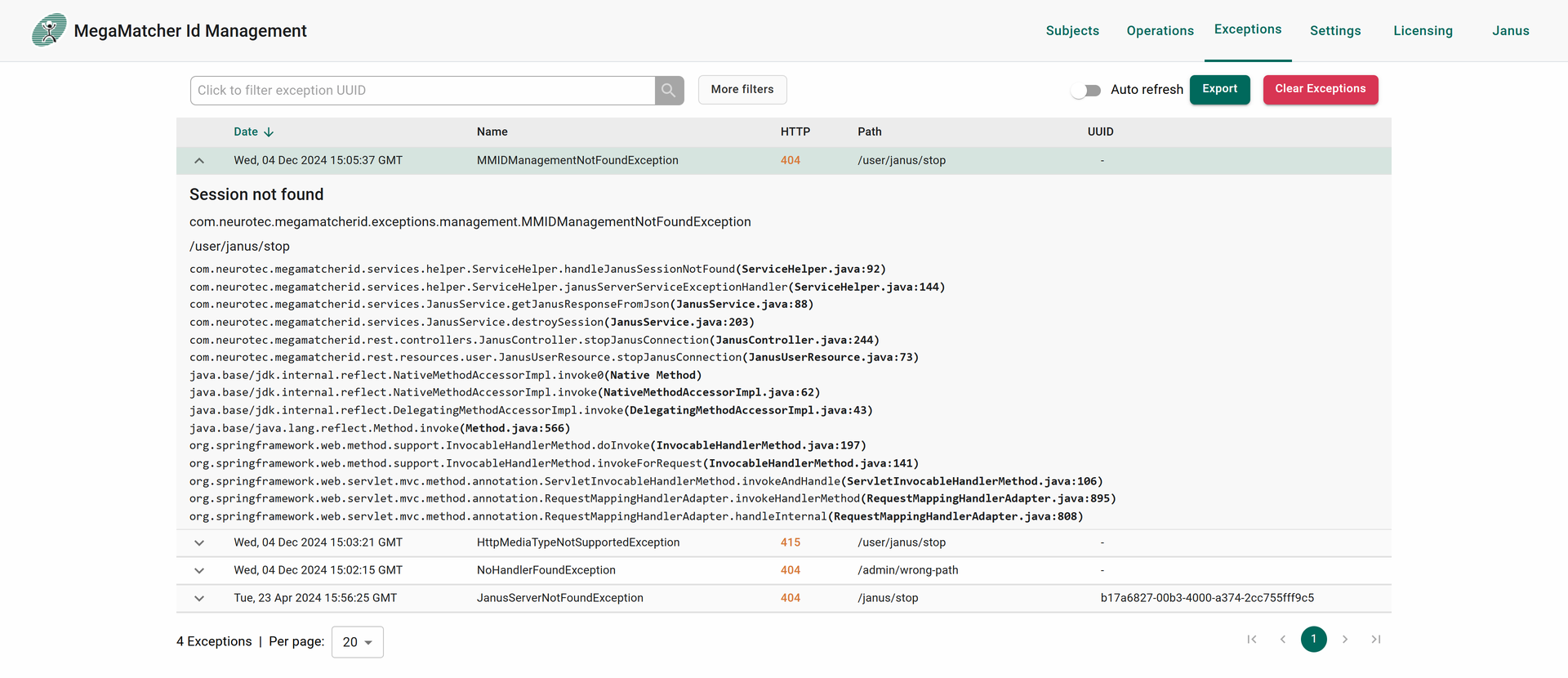
Moreover a few more functionalities:
- Auto refresh - monitor exceptions continuously as they happen without refreshing the page
- Export - generates a json of all exceptions to be analyzed at a further date, or by the MMID support team
- Clear exceptions - clears all exceptions

Note: the default number of exceptions that are saved is 10000.
Settings
There are different types of settings on MegaMatcher ID server, which are divided to a few different tabs For more detailed explanation see here.
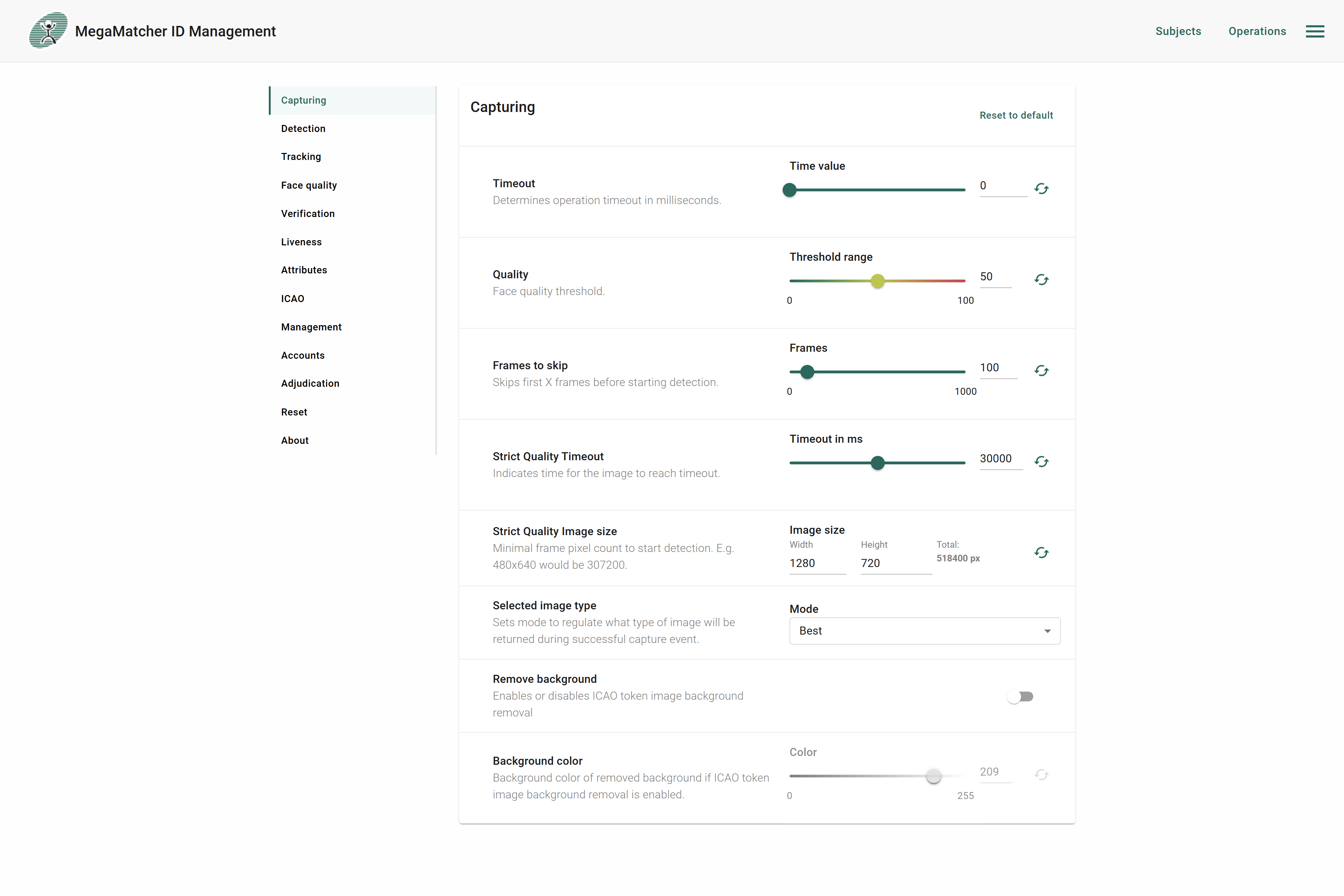
Capturing
Controls core capture behavior such as operation timeout, face quality threshold, frames to skip, and background removal. For detailed parameter descriptions see Capturing settings.
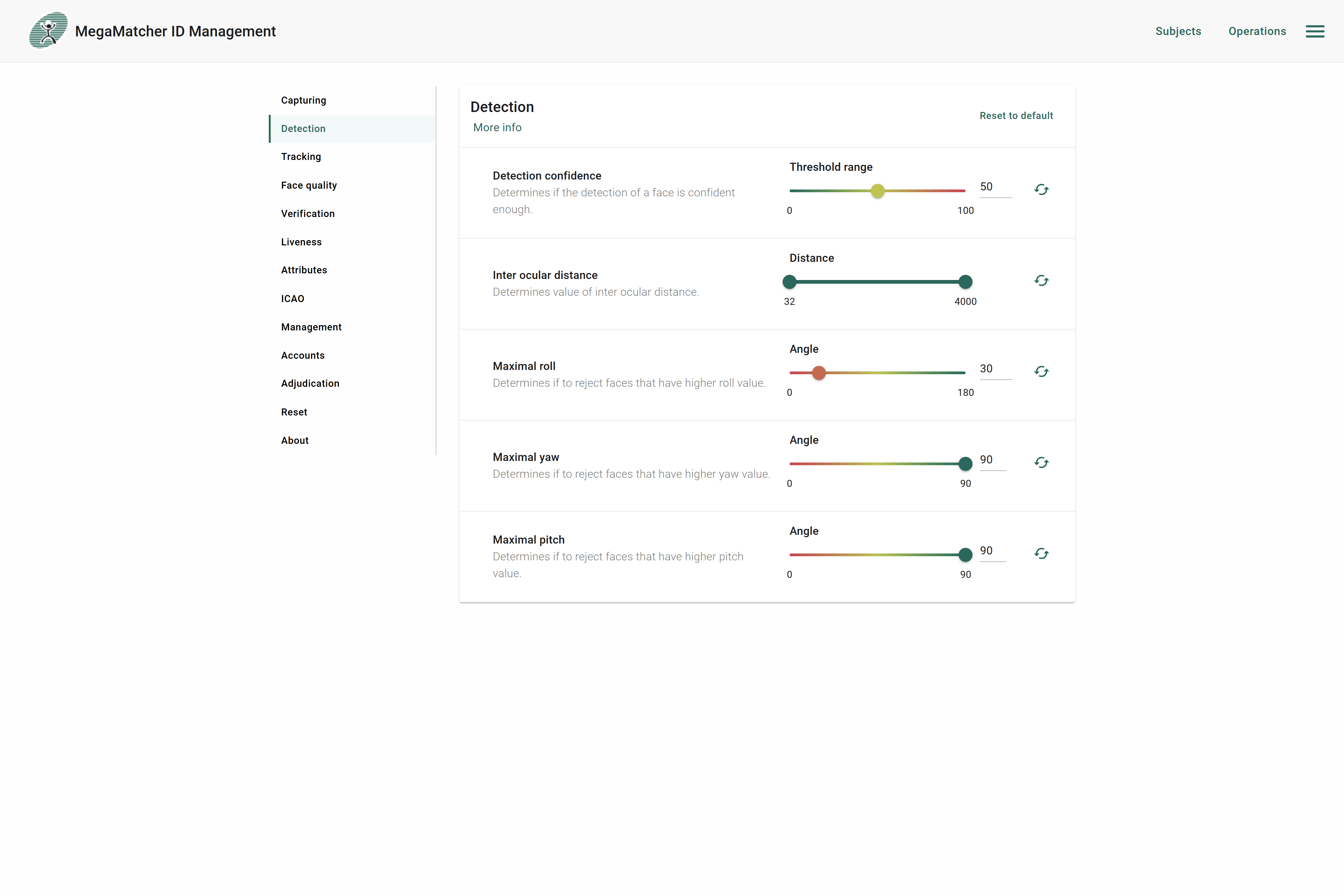
Detection
Controls face detection parameters including confidence threshold, inter ocular distance, and maximum allowed head rotation angles. For detailed parameter descriptions see Detection settings.
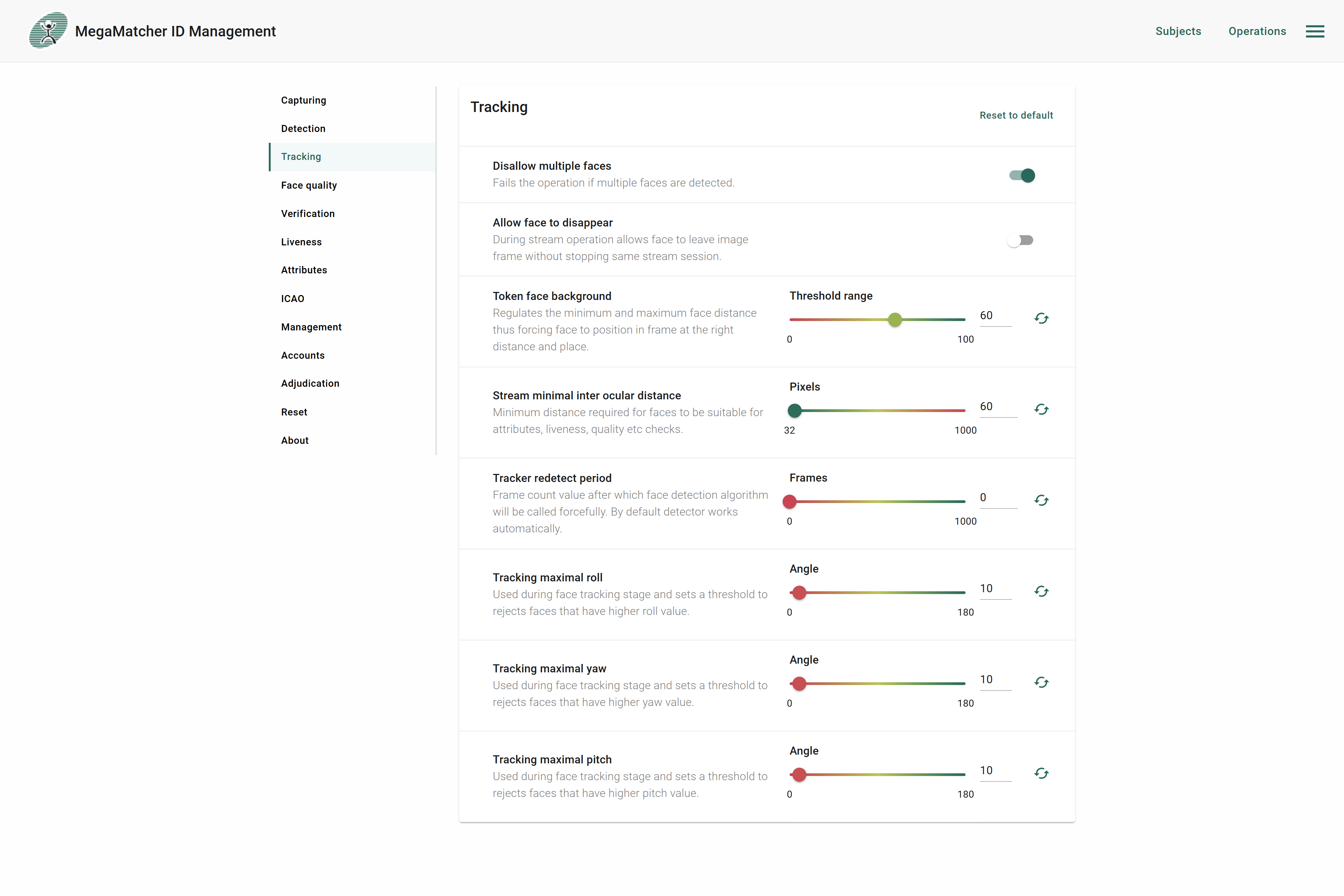
Tracking
After face detection, the Face Tracking module takes over to continuously monitor facial position and movement across frames. This improves performance and reduces CPU utilization by eliminating the need for full-frame detection on every frame. For detailed parameter descriptions see Tracking settings.
Face Quality
Face Quality Assessment evaluates the reliability of a captured face image for biometric matching. Settings here control thresholds for quality metrics such as sharpness, exposure, occlusion, and noise to ensure only suitable images are retained. For detailed parameter descriptions see Face Quality settings.
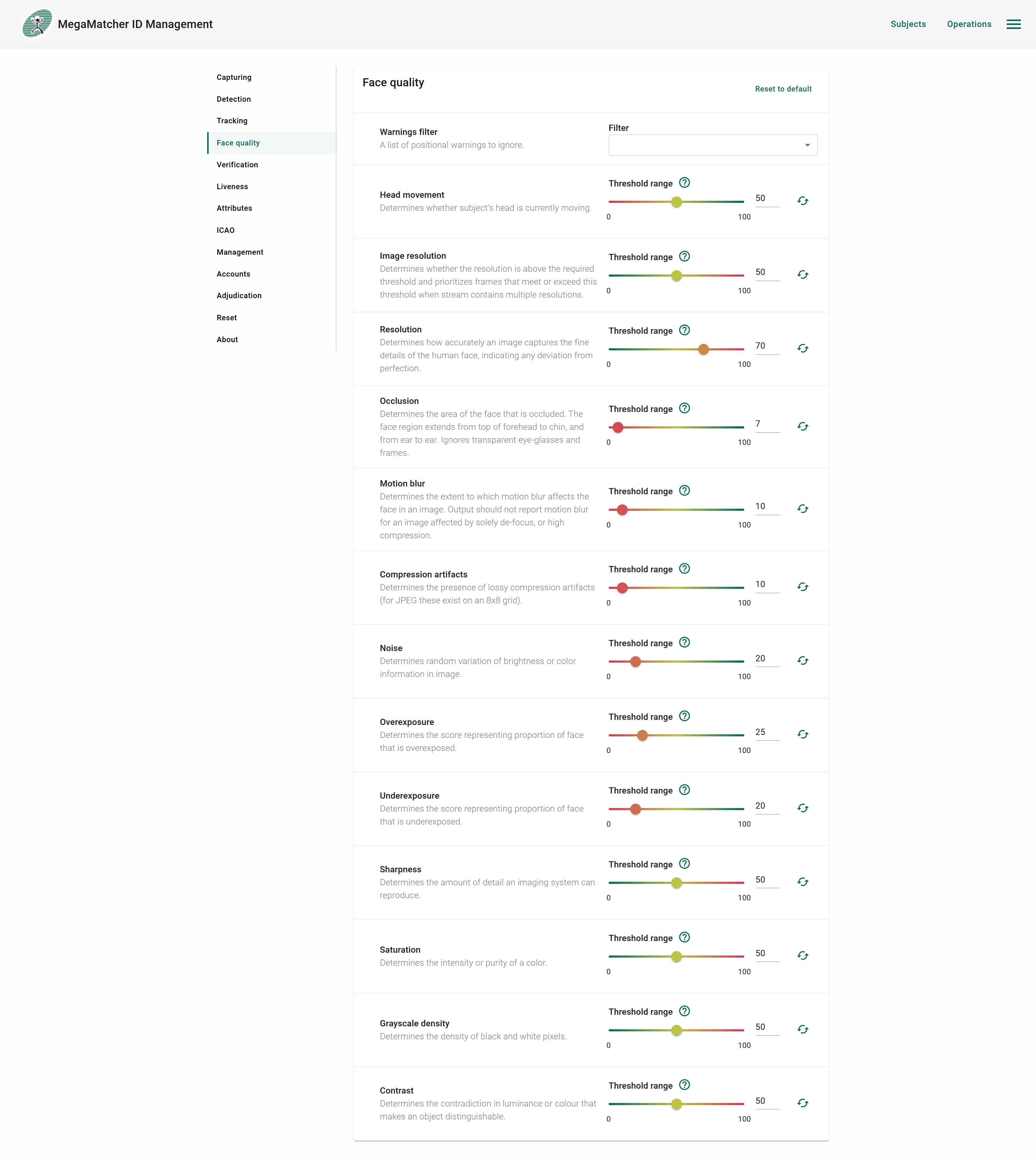
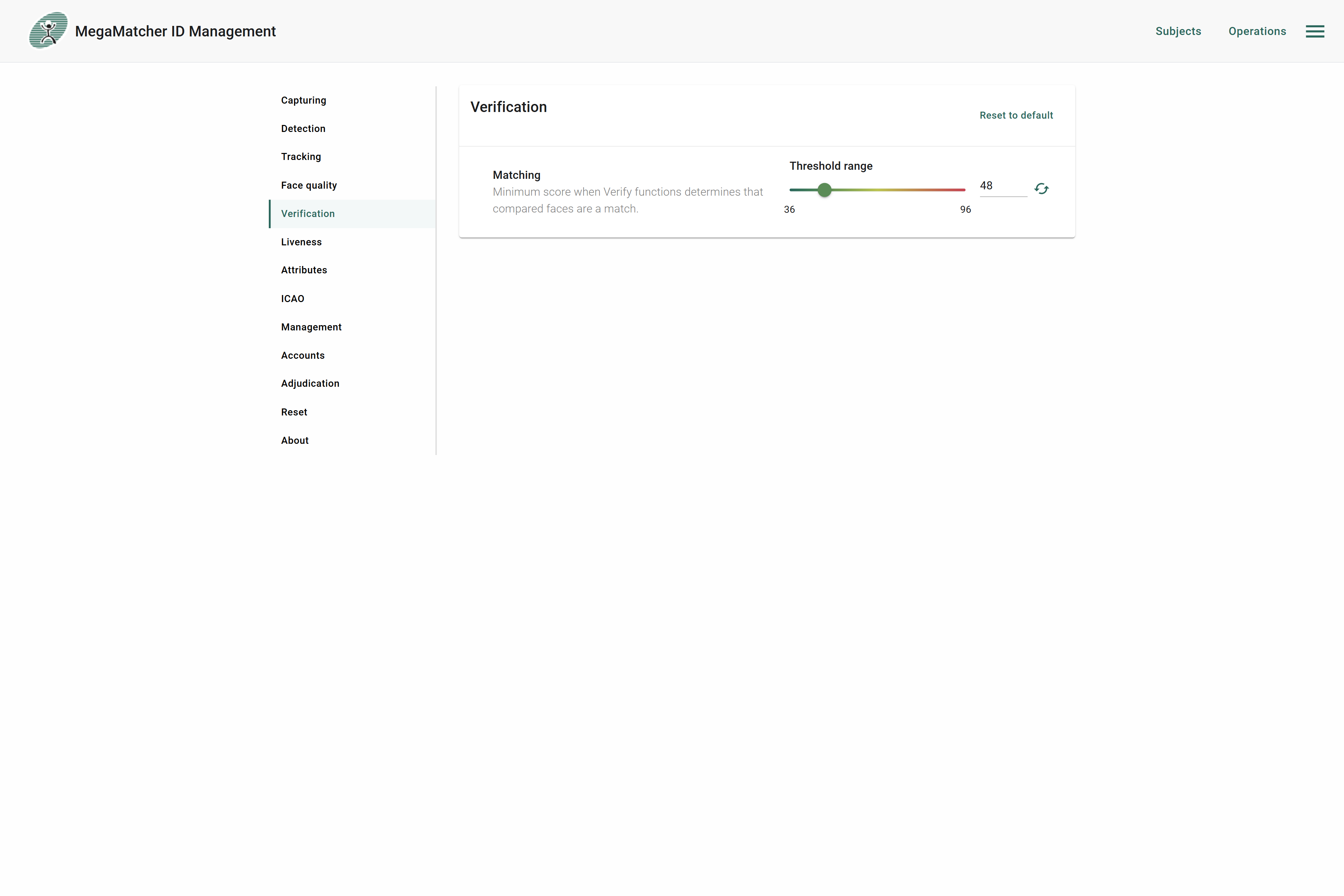
Verification
Controls the matching threshold that determines when two faces are considered a match. For detailed parameter descriptions see Verification settings.
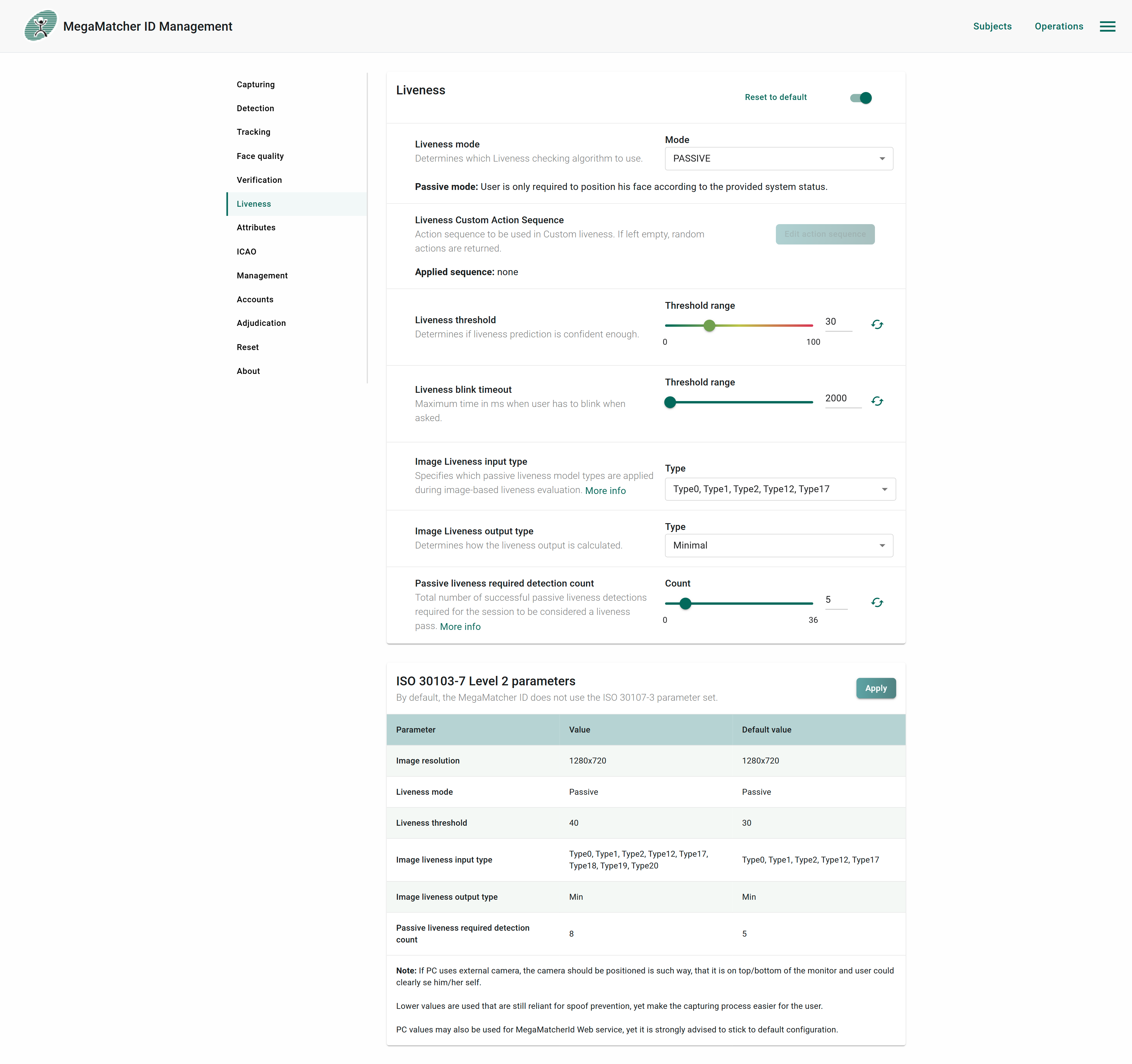
Liveness
To use Liveness you first need to enable it using the switch at the top right. Then Liveness settings will become active. Liveness custom action sequence is only used in the custom liveness mode and thus is only available when custom liveness mode is used. To enable ISO 30107-3 level 2 settings press Apply next to the parameters, you will then be prompted on what settings to use: PC or mobile. After you apply the settings, it will automatically change the appropriate parameters from the table. For detailed parameter descriptions see Liveness settings.
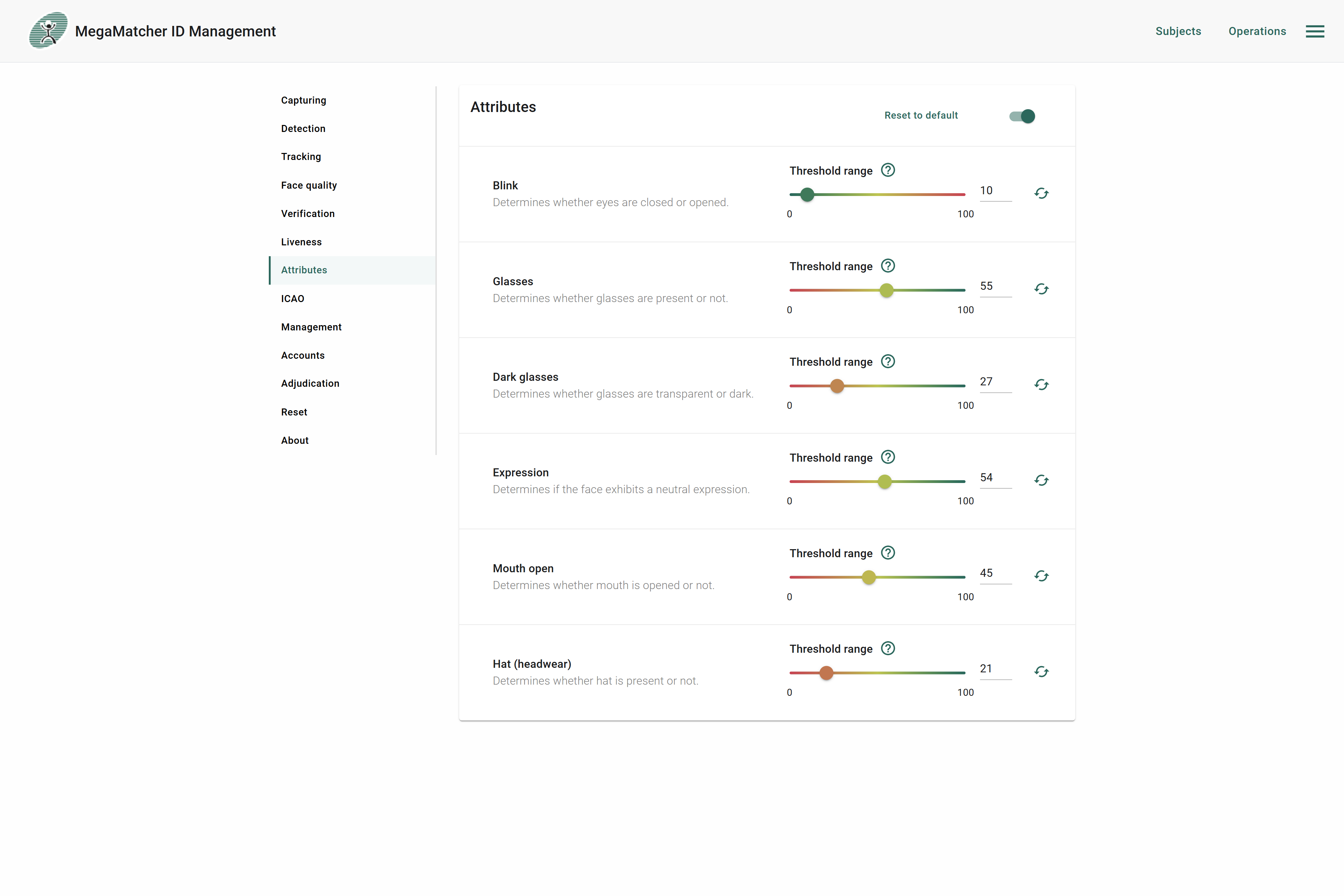
Attributes
Face Attributes settings control thresholds for detecting key visual conditions such as eye state, glasses, expression, and headwear — used primarily to enforce capture quality requirements and produce standardized images. For detailed parameter descriptions see Attributes settings.
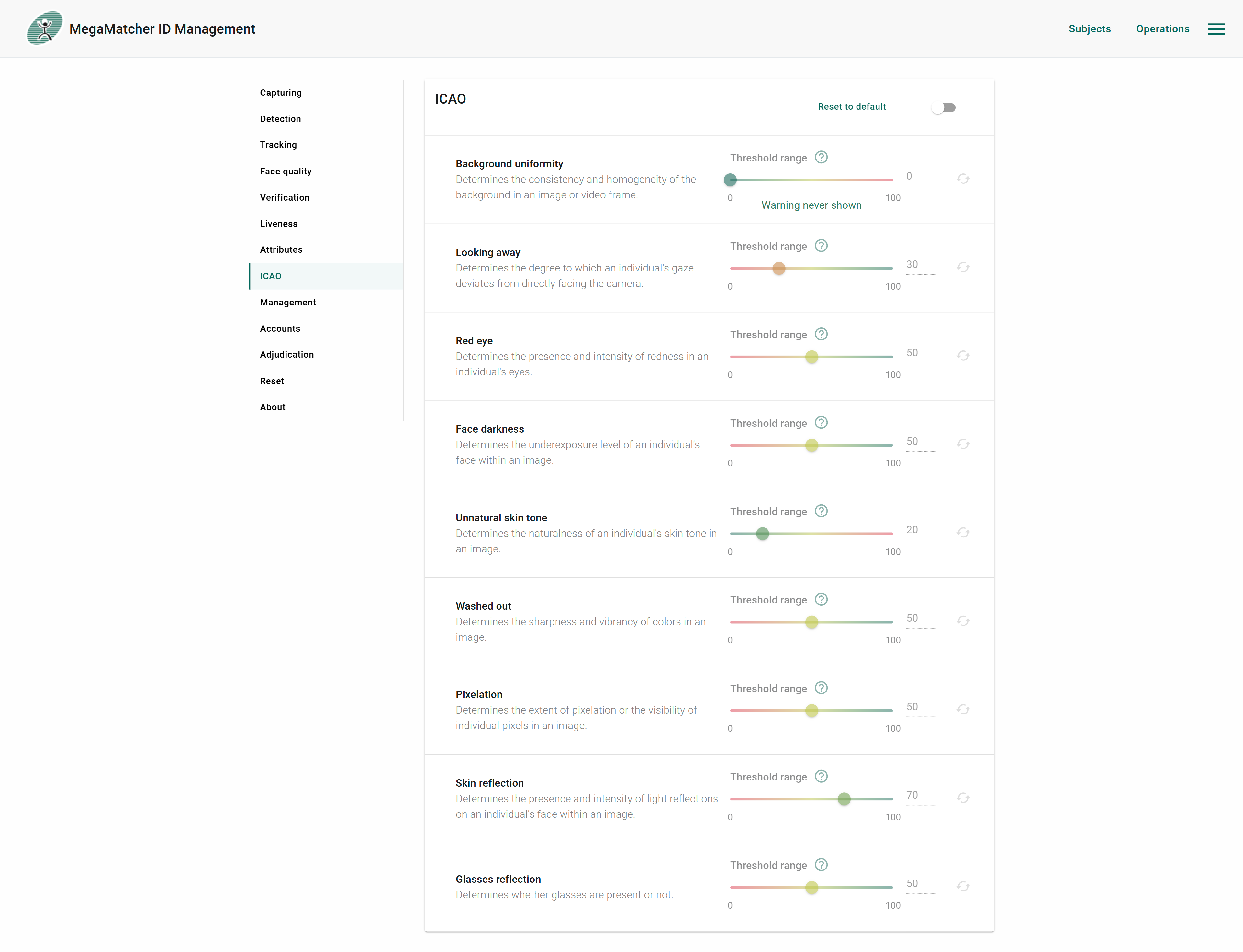
ICAO
To use ICAO you first need to enable it using the switch at the top right. Background color is only used when Remove background is enabled. For detailed parameter descriptions see ICAO settings.
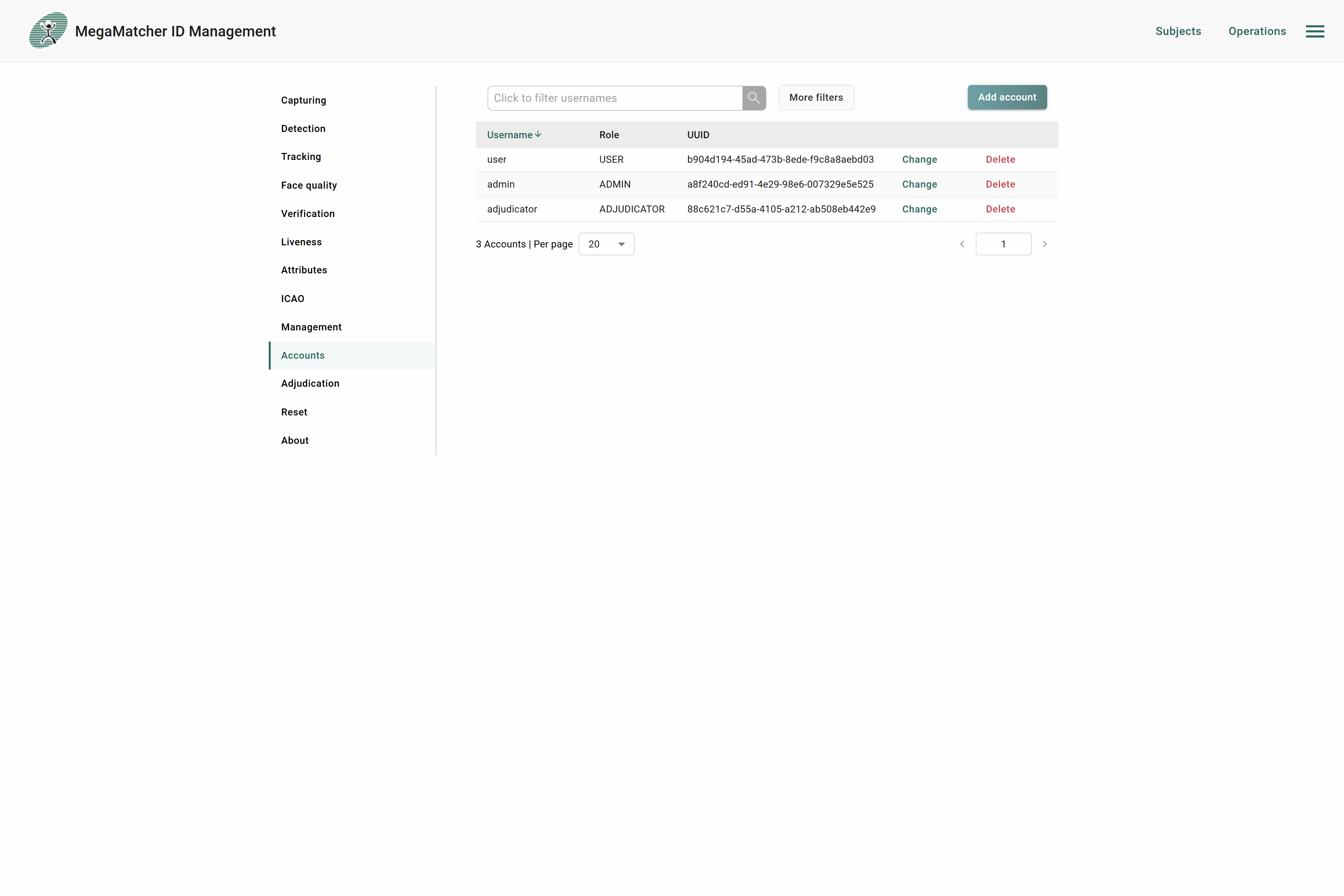
Accounts
To learn more about the different roles and their permissions, see here. Passwords are securely encoded in the backend. By default, two accounts are created: User and Admin. These are used for the demo web interface and the management web interface, respectively.
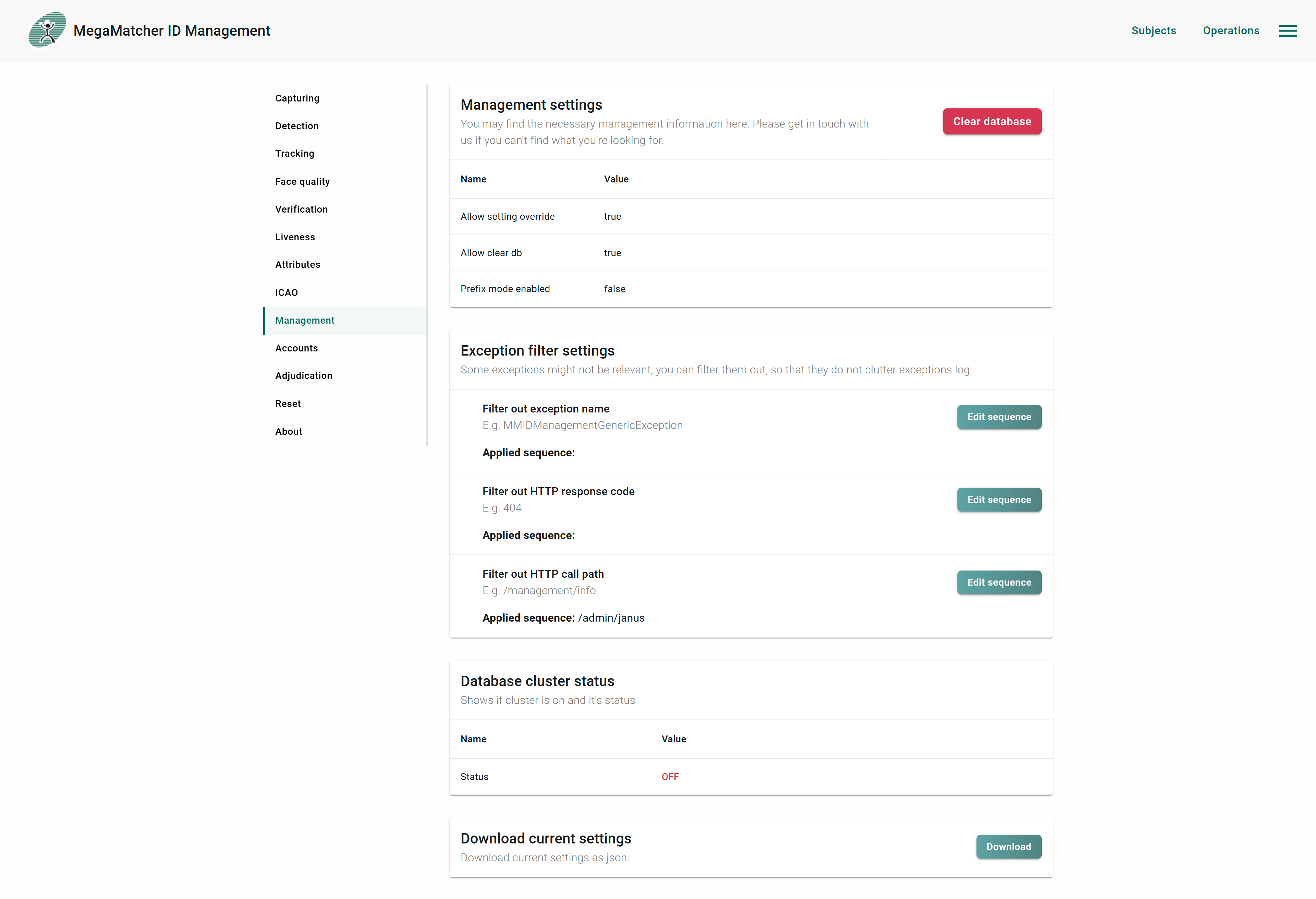
Management
To have the ability to clear database, it needs to be enable on the server settings see development properties. Exception filter settings are used to filter out non relevant exception to not be saved to the database.
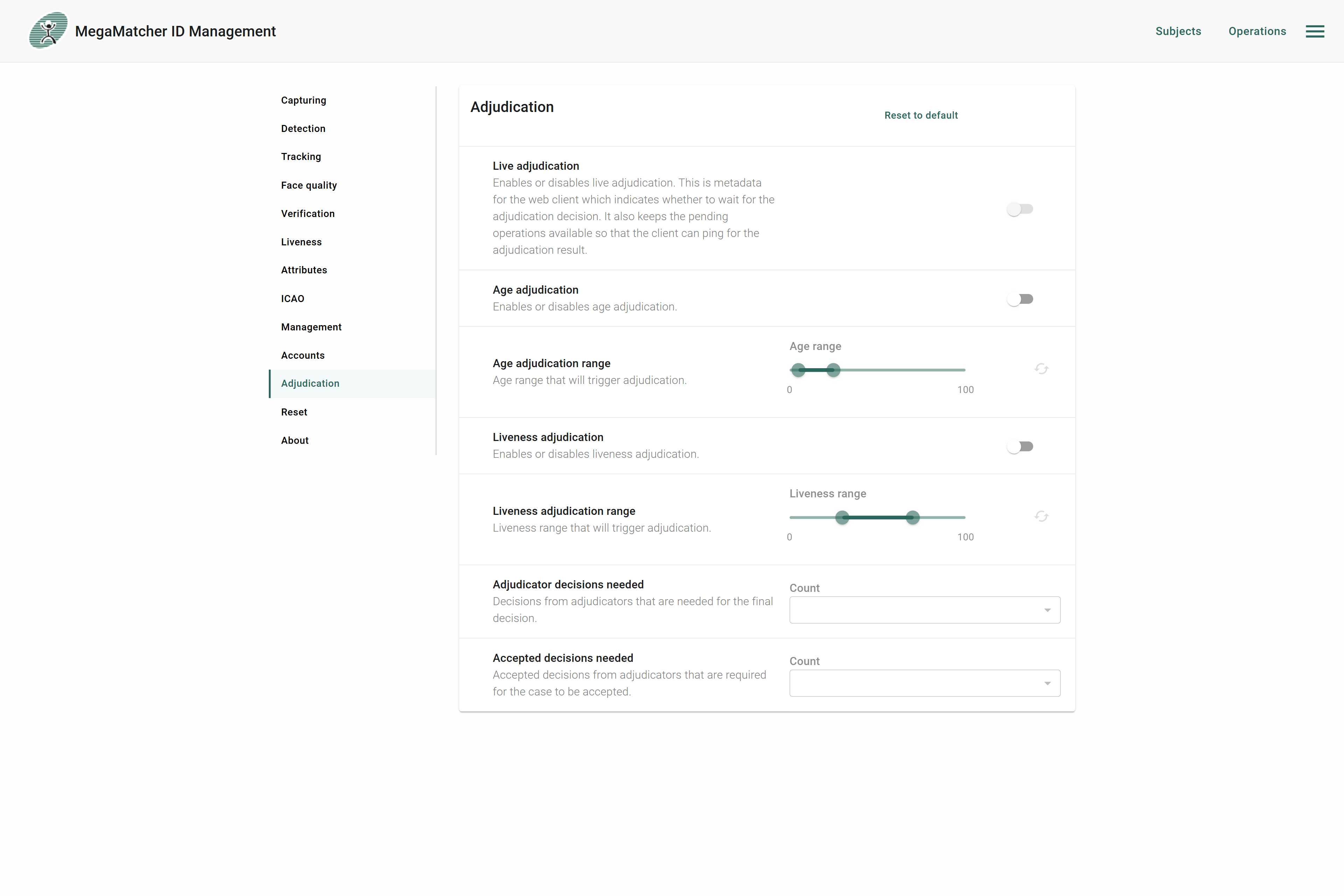
Adjudication
Configures live, age, and liveness adjudication rules including thresholds and the number of adjudicator decisions required. For detailed parameter descriptions see Adjudication settings.
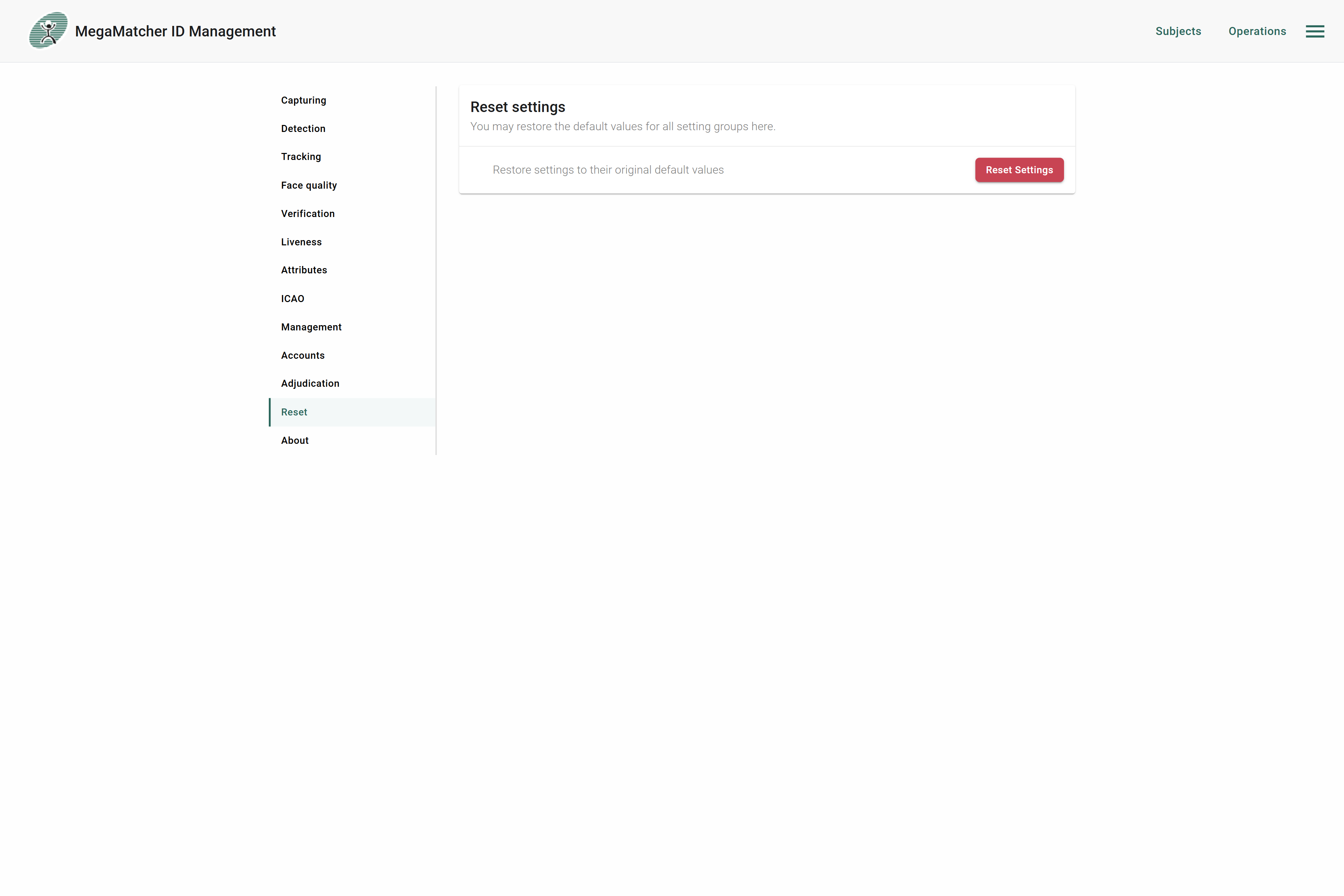
Reset
Allows resetting all biometric operation settings back to their default values.
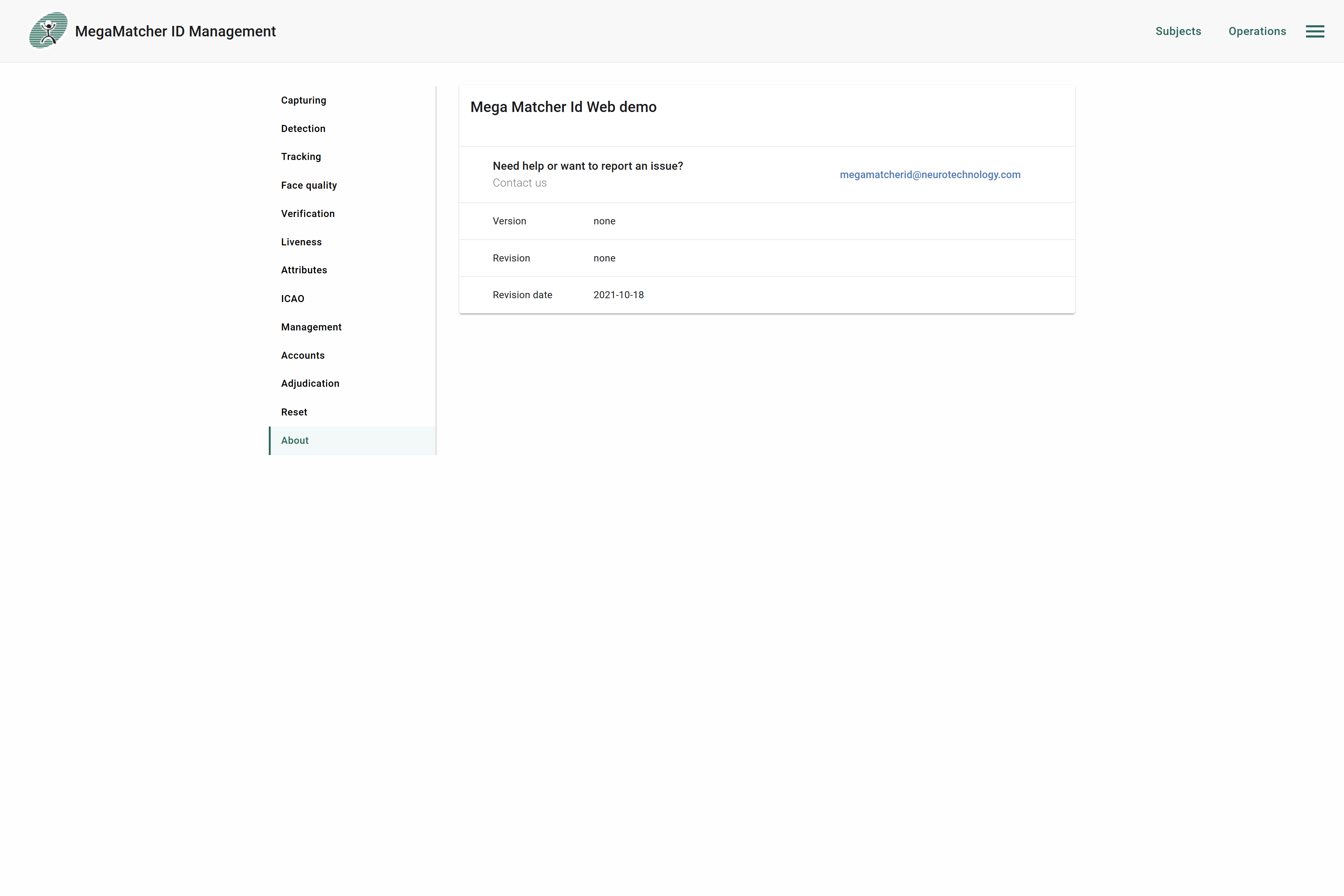
About
Displays current version information for the MegaMatcher ID server components.
Licensing
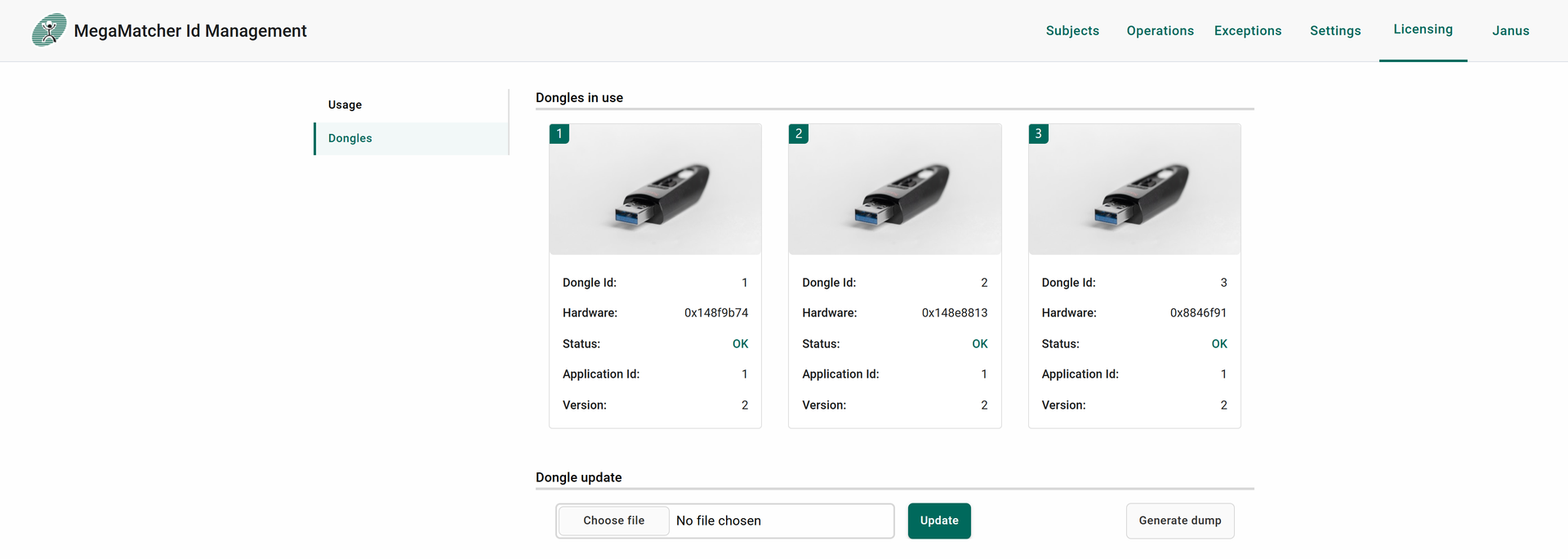
Licensing view shows current status of licensing service that management is connected to. In this view user can observe licensing used and available operation counts. If non-trial installation was made, the view also shows connected dongles or internet license in use.
Usage shows what licenses are available and for each of them how many are remaining and used:
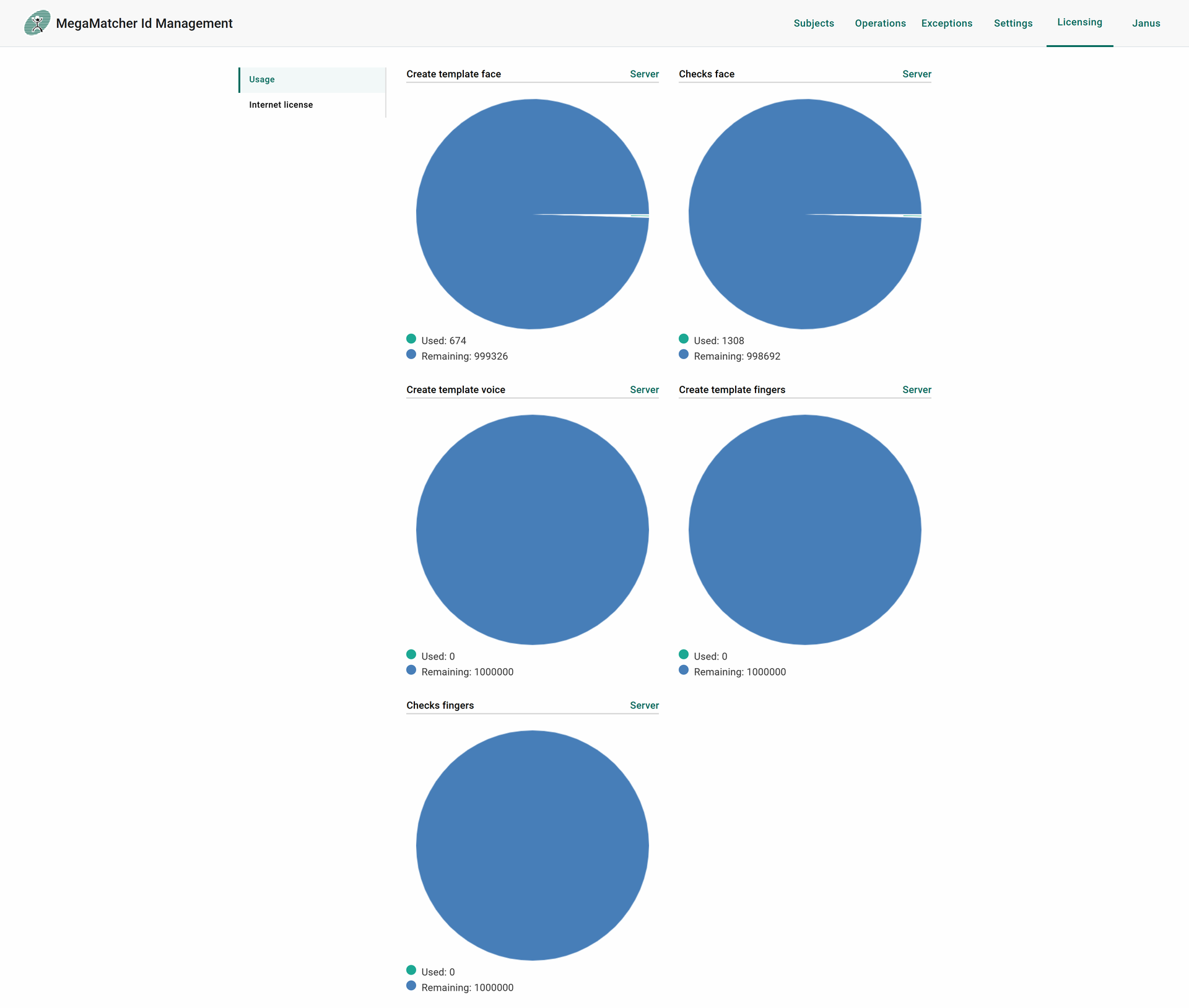
When trial/cloud is used:

When internet license used:

When dongles used. This is also where you can do dongle updates and generate dumps:
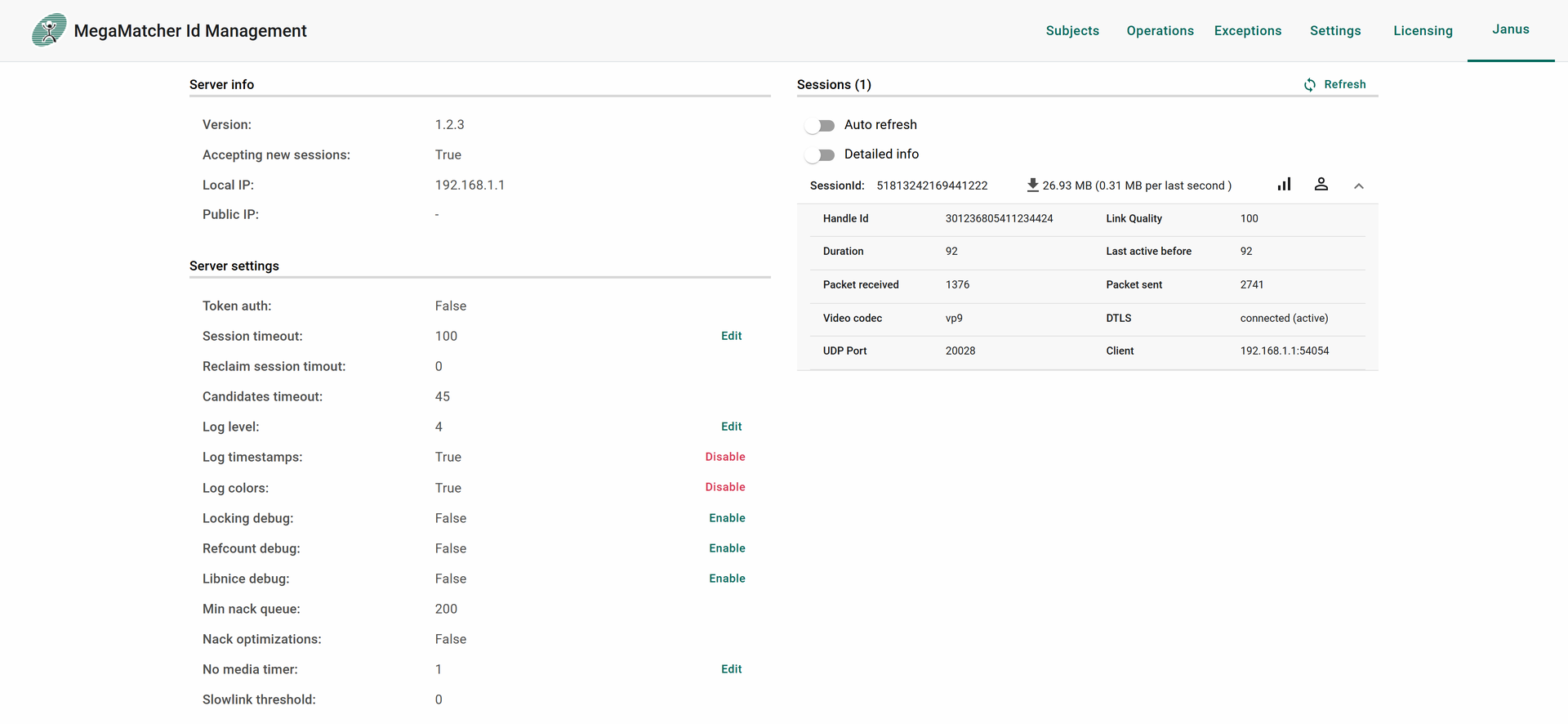
Janus
Janus view shows the status of janus, allowing to change some of the settings (see configuration script)
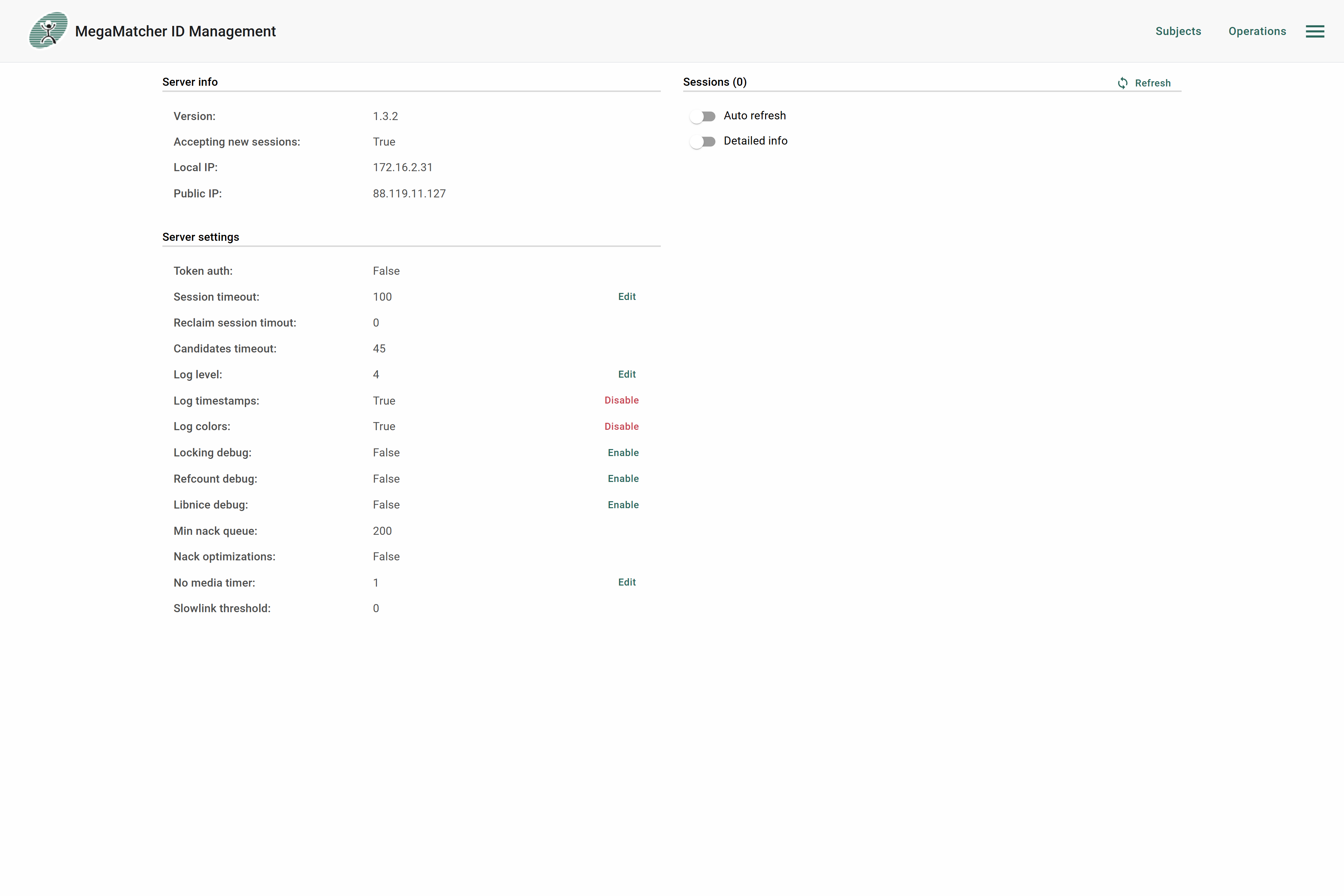
Also you see list a of active sessions:
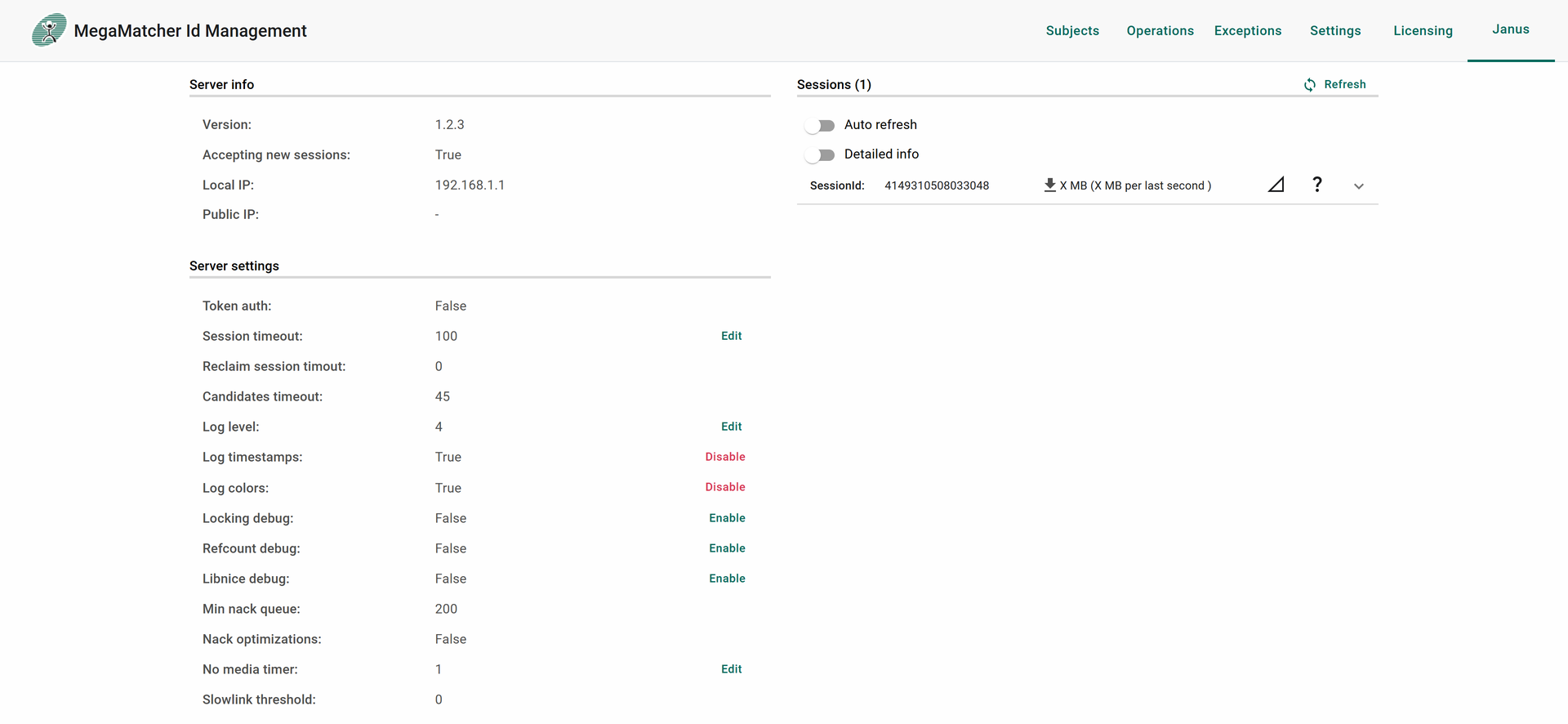
If clicked on an active session, detailed info is displayed: